{"searchBar":{"inputPlaceholder":"Search by keyword or ask a question","searchBtn":"Search","error":"Please enter a keyword to search"}}
{}
{"support":{"yesButton":"Yes","noButton":"No","feedback":{"title":"What can we do to improve?"},"submitButton":"Submit","successMessage":"Thank you for your feedback","title":"Did this answer your question?","feedbackPercentLabel":"of people found this helpful","captcha":{"error":"Please check the box"}}}
Search FAQs
Can I show auxiliary lines on the Historical Trend Graph?
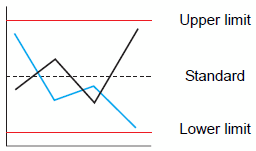
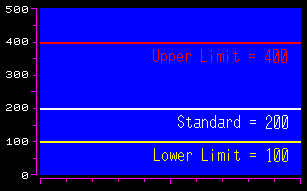
You can set three auxiliary lines: Upper Limit, Lower Limit, and Standard. You can easily determine whether an error has occurred or not.
NOTE
1.
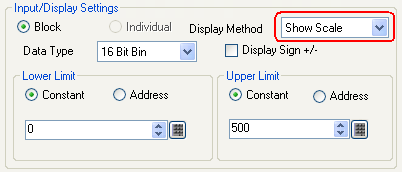
To use Auxiliary Lines, the [Display Method] in the [Input/Display Settings] area must be set to [Show Scale].
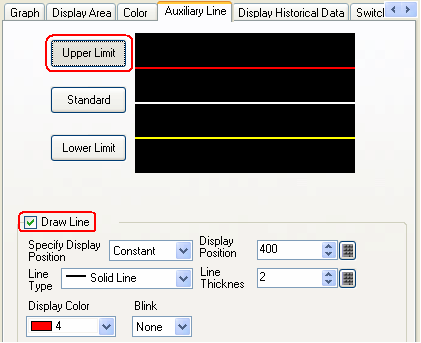
If you set [Specify Display Position] to [Constant] on the [Auxiliary Line] tab and set the [Upper Limit] to 400, [Standard] to 200, and [Lower Limit] to 100, the graph will be shown as below.