{"searchBar":{"inputPlaceholder":"Search by keyword or ask a question","searchBtn":"Search","error":"Please enter a keyword to search"}}
{}
{"support":{"yesButton":"Yes","noButton":"No","feedback":{"title":"What can we do to improve?"},"submitButton":"Submit","successMessage":"Thank you for your feedback","title":"Did this answer your question?","feedbackPercentLabel":"of people found this helpful","captcha":{"error":"Please check the box"}}}
Search FAQs
Rockwell Automation DF1
Rockwell Automation DF1
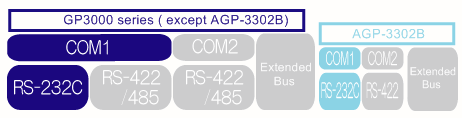
When replacing the cable (RS-232C) used for GP2000/77R/70 series to GP3000 series
Connect to COM1.
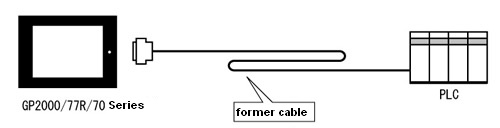
System Configuration Diagram of GP2000/77R/70 series
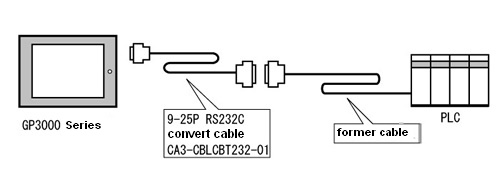
System Configuration Diagram after the replacement to GP3000 series
* Data Storing Order
<For the protocol version 1.11.05 or lower> With GP-PRO/PB III, there were 2 patterns of storing order of 32-bit data, L/H and H/L. However, with GP-Pro EX, L/H is the only storing order of 32-bit data.
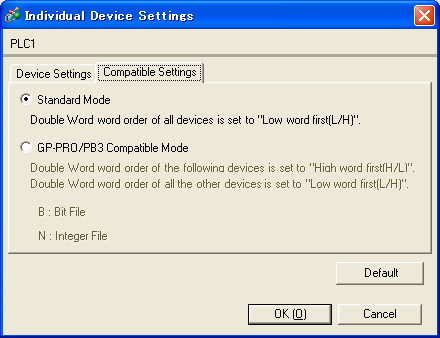
<For the protocol version 1.12.06 or above> On the [Compatible Settings] tab in the [Individual Device Settings] dialog box, you can select either "Standard Mode" or "GP-PRO/PB3 Compatible Mode". If you select the "Standard Mode", the order for all devices will be set to "low word first (L/H)" according to the specification of 32-bit data L/H settings of the PLC ladder tool. If you select the "GP-PRO/PB3 Compatible Mode", the 32-bit data L/H storing order for some devices will be "high word first (H/L)" according to the specification of GP-PRO/PB III. If you convert a project file of GP-PRO/PB III while selecting this mode, a warning message will appear. In this case, select the "Standard Mode" for the compatible setting, and the project file will be converted. If you convert a project file of GP-PRO/PB III specifying the ContorolLogix/CompactLogix series, the warning message will not appear.
<e.g.: SLC500 series or MicroLogix series>
* Compatibility with older versions in the Simulation feature
Using the driver version 1.11.05 or lower, the ON/OFF operation of the T, C, and R devices specified as a bit device will not be displayed properly when referring to them in the Simulation feature. The screen data file created with the driver version 1.11.05 or lower will not be displayed properly in the Simulation feature even if it is opened with the software in which the version 1.12.06 is installed.
To display them properly, follow the procedures below.
1.
Open the screen data file with GP-Pro EX in which the protocol version 1.12.06 is installed and open the [Individual Device Setting] dialog box.
2.
Select the [Compatible Settings] tab and change the "Standard Mode" to the "GP-PRO/PB3 Compatible Mode".
3.
Click [OK].
4.
Open the [Individual Device Settings] dialog box again.
5.
Open the [Compatible Settings] tab, change the setting to the "Standard Mode", and click [OK].