Prior to installation, be sure to back up the MESActionDB. And after completing the installation, restore and attach the MESActionDB. Refer to the following for the detailed procedures.
Install MES Action and use SQL Server Management Studio Express in a User Account that has Administrator privileges.
- Detach the MESActionDB.
1.1 Start SQL Server Management Studio Express, and connect to the SQL Server.
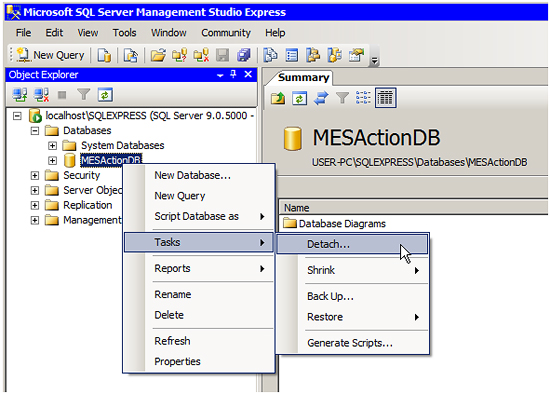
1.2 Right-click [MESActionDB] in order to display the menu. Select [Tasks], click [Detach].
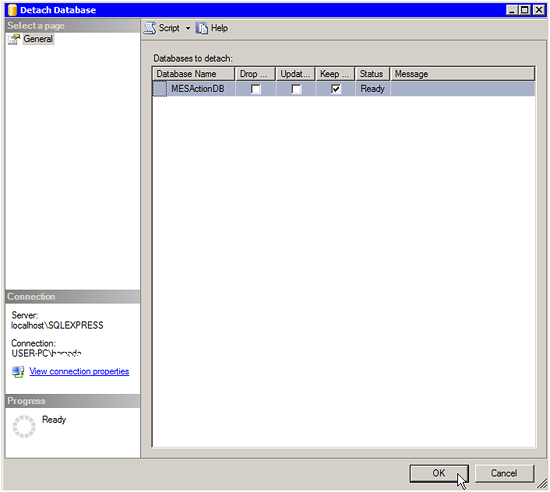
1.3 Click [OK] on the [Detach Database] screen.
1.4 Confirm that the MESActionDB database has not been displayed in the Object Explorer.
- Back up the MESActionDB
2.1 Copy "MESActionDB.mdf" and "MESActionDB_log.ldf" in the MESActionDB folder* under the Pro-Server EX installation folder to the other folder.
* Default:
Lower than V1.37.300: C:\Program Files\Pro-face\Pro-Server EX\MESActionDB
(Windows Vista or later: C:\Pro-face\Pro-Server EX\MESActionDB)
V1.37.300 and later: C:\Pro-face\Pro-Server EX\MESActionDB
- Install MES Action.
3.1 Start update module of MES Action.
3.2 Follow the instruction and execute the installation.
After the installation has finished, check if the installation was successful and check the version.
How to check the version of MES Action:
[Control Panel] -> [Add or remove programs] -> [MES Action]
- Restore the MESActionDB.
4.1 Return "MESActionDB.mdf" and "MESActionDB_log.ldf" backed up in step 2.1 to the MESActionDB folder* under the Pro-Server EX installation folder.
* Default:
Lower than V1.37.300: C:\Program Files\Pro-face\Pro-Server EX\MESActionDB
(Windows Vista or later: C:\Pro-face\Pro-Server EX\MESActionDB)
V1.37.300 and later: C:\Pro-face\Pro-Server EX\MESActionDB
- Attach the MESActionDB.
5.1 Start SQL Server Management Studio Express, and connect to the SQL Server.
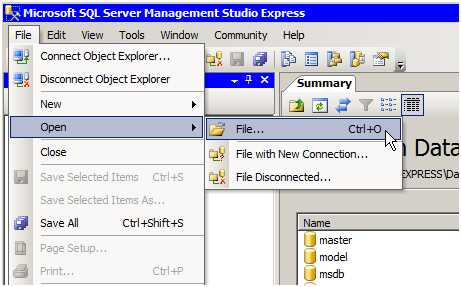
5.2 Select [Open] from the [File] menu of SQL Server Management Studio Express, click [File].
5.3 Open "DbInstall_No1.sql" in the MESActionDB folder* under the Pro-Server EX installation folder on the [Open File] screen.
* Default:
Lower than V1.37.300: C:\Program Files\Pro-face\Pro-Server EX\MESActionDB
(Windows Vista or later: C:\Pro-face\Pro-Server EX\MESActionDB)
V1.37.300 and later: C:\Pro-face\Pro-Server EX\MESActionDB
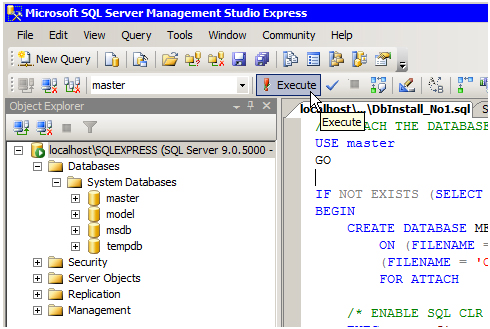
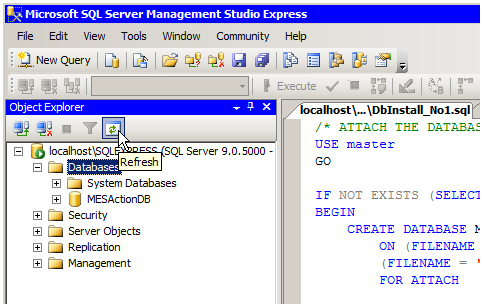
5.4 To attach the MESActionDB, execute “DbInstall_No1.sql”. Click [Execute] on the toolbar.
[IMPORTANT] When using 64 bit OS, reboot the SQL Server after executing DbInstall_No.1.sql.
5.5 Execute [Refresh] in SQL Server Management Studio Express, and confirm that the MESActionDB database has been added to Object Explorer.
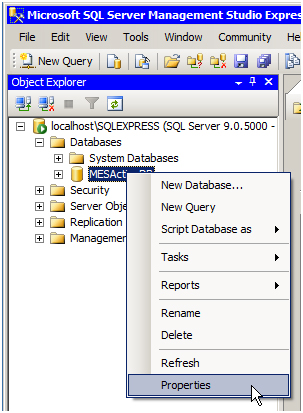
5.6 Right-click [MESActionDB] in order to display the menu. Click [Properties].
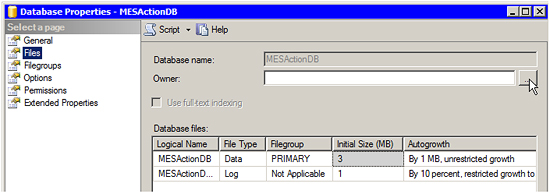
5.7 Click [Files] from the [Select a page] field on the [Database Properties] screen, and click the button on the right of the [Owner] field.
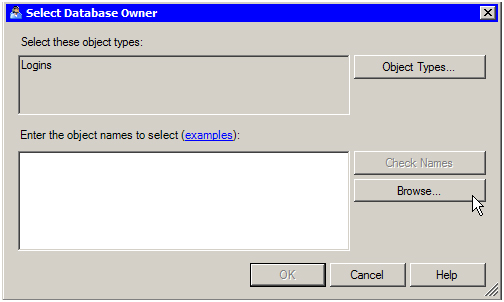
5.8 Click the [Browse] on the [Select Database Owner] screen.
5.9 Check the user account having the administrator privileges on the [Browse for Objects] screen, and click [OK].
5.10 It takes you back to the [Select Database Owner] screen. Click [OK].
5.11 It takes you back to the [Database Properties] screen. Click [OK].
5.12 It takes you back to the [SQL Server Management Studio Express] screen.
5.13 Select [Open] from the [File] menu of SQL Server Management Studio Express, click [File].
5.14 Open "DbInstall_No2.sql" in the MESActionDB folder* under the Pro-Server EX installation folder on the [Open File] screen.
* Default:
Lower than V1.37.300: C:\Program Files\Pro-face\Pro-Server EX\MESActionDB
(Windows Vista or later: C:\Pro-face\Pro-Server EX\MESActionDB)
V1.37.300 and later: C:\Program Files\Pro-face\Pro-Server EX\MESActionDB
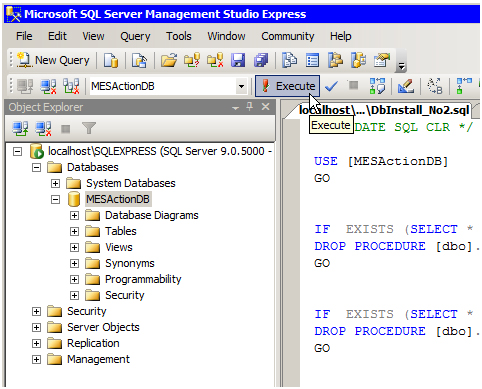
5.15 To execute "DbInstall_No2.sql", click [Execute] on the toolbar.
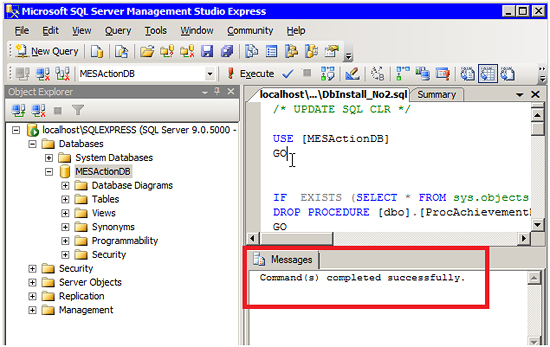
5.16 Confirm that the execution "DbInstall_No2.sql" is completed successfully.