

Add User Account
Users with administrator rights can register and define the roles of additional user accounts. The admin user can assign permissions to users for accessing features in the System Settings in accordance with their roles.
NOTE: You
can create a maximum 50 users and 30 roles.
- Log in to the System Settings. Refer to How to display the System Settings.
- From the menu, select Authentication. At the top right of the screen, touch EDIT switch to editing mode.
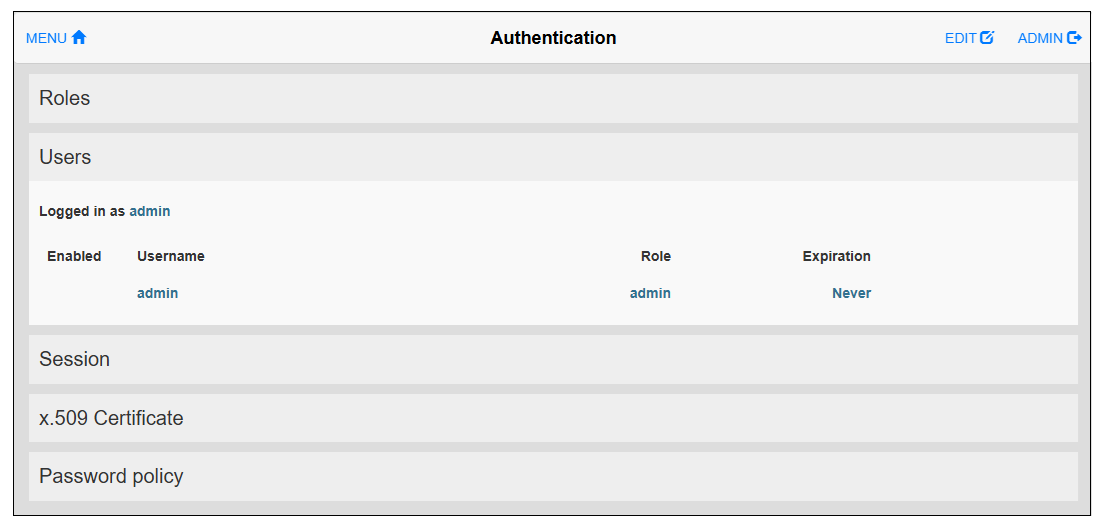
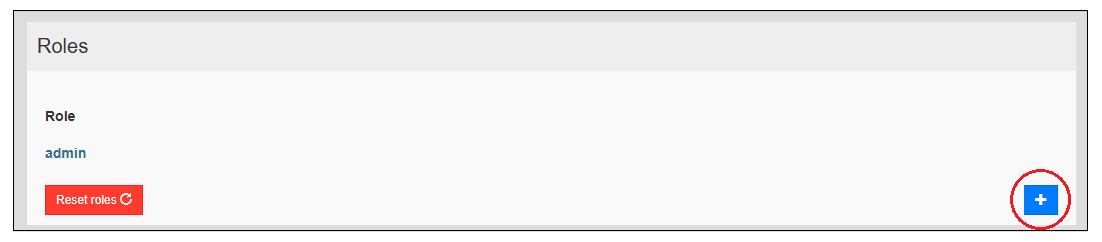
- Select the Roles row
and touch the plus button on the right edge of the screen.
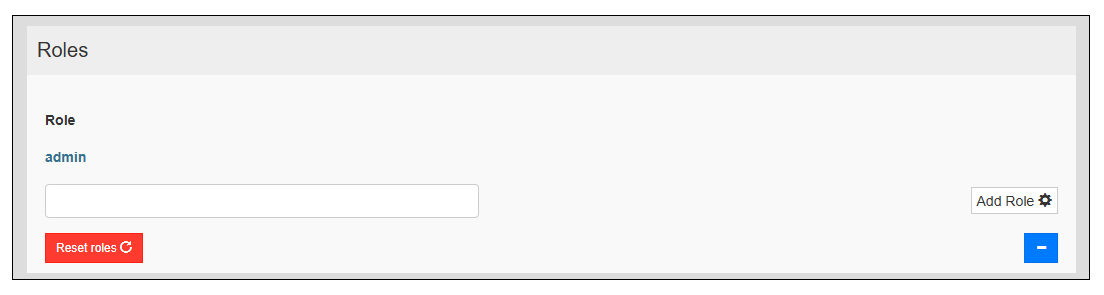
- Enter a name for the new role and click the Add Role button.
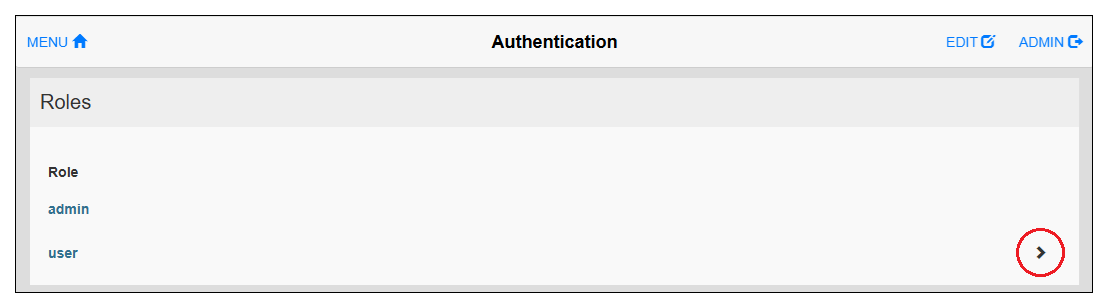
- Touch BACK, and then
touch the arrow icon beside the role that was added.
- After the Role detail is displayed, in the top-right corner of the screen, touch EDIT.
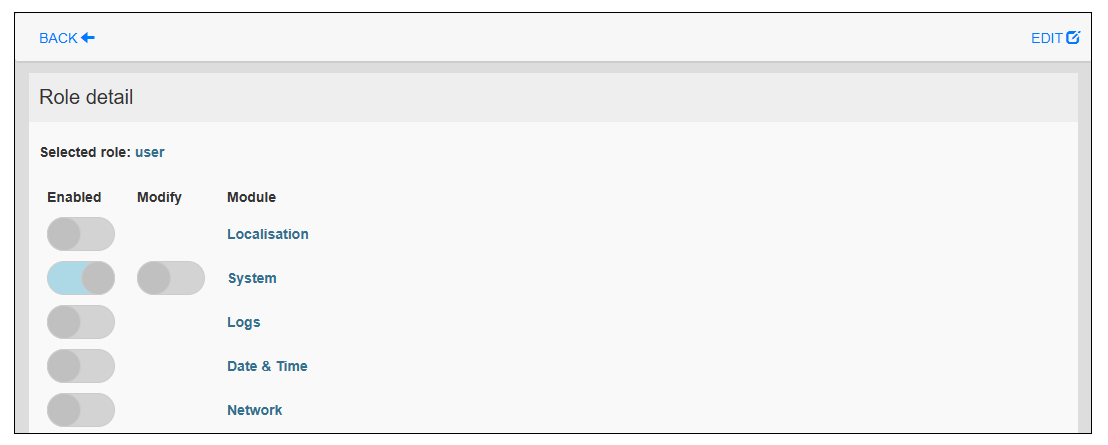
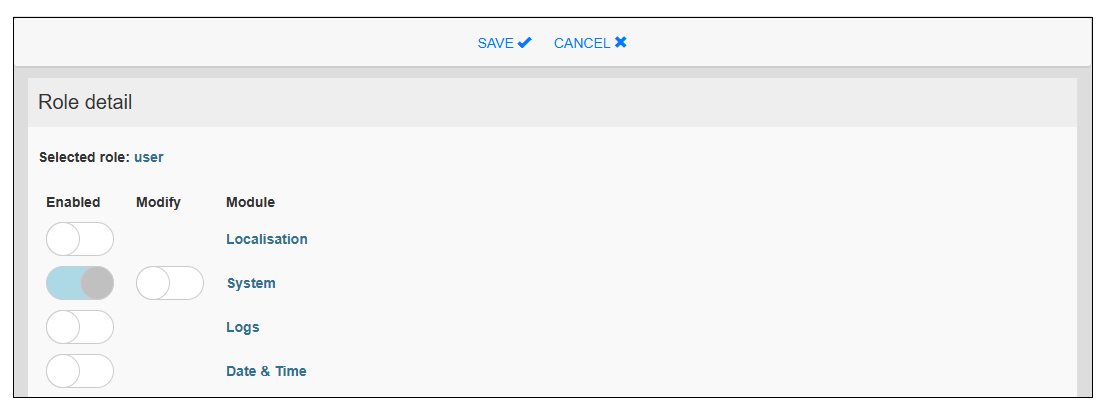
- Set the necessary access rights in accordance with the
role and touch SAVE.
- Touch BACK, then touch EDIT. Select the Users row and touch the plus button on the right edge of the screen.
- Enter the username and select a role.NOTE: Usernames are limited to 32 characters and must begin with a lowercase character.
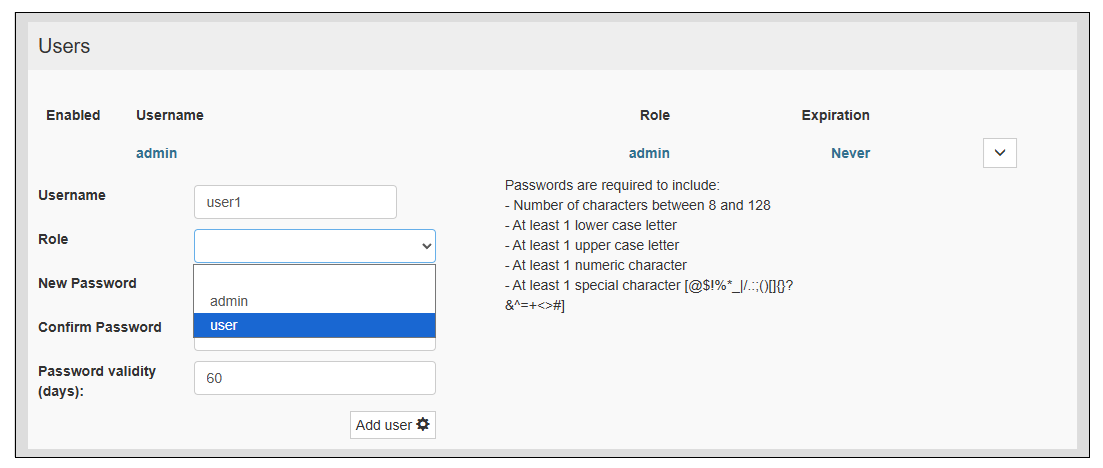
- Create a new password and specify how long it will be valid (in days).
- Touch the Add user button.