

Display
Configure display settings such as brightness and touch areas.
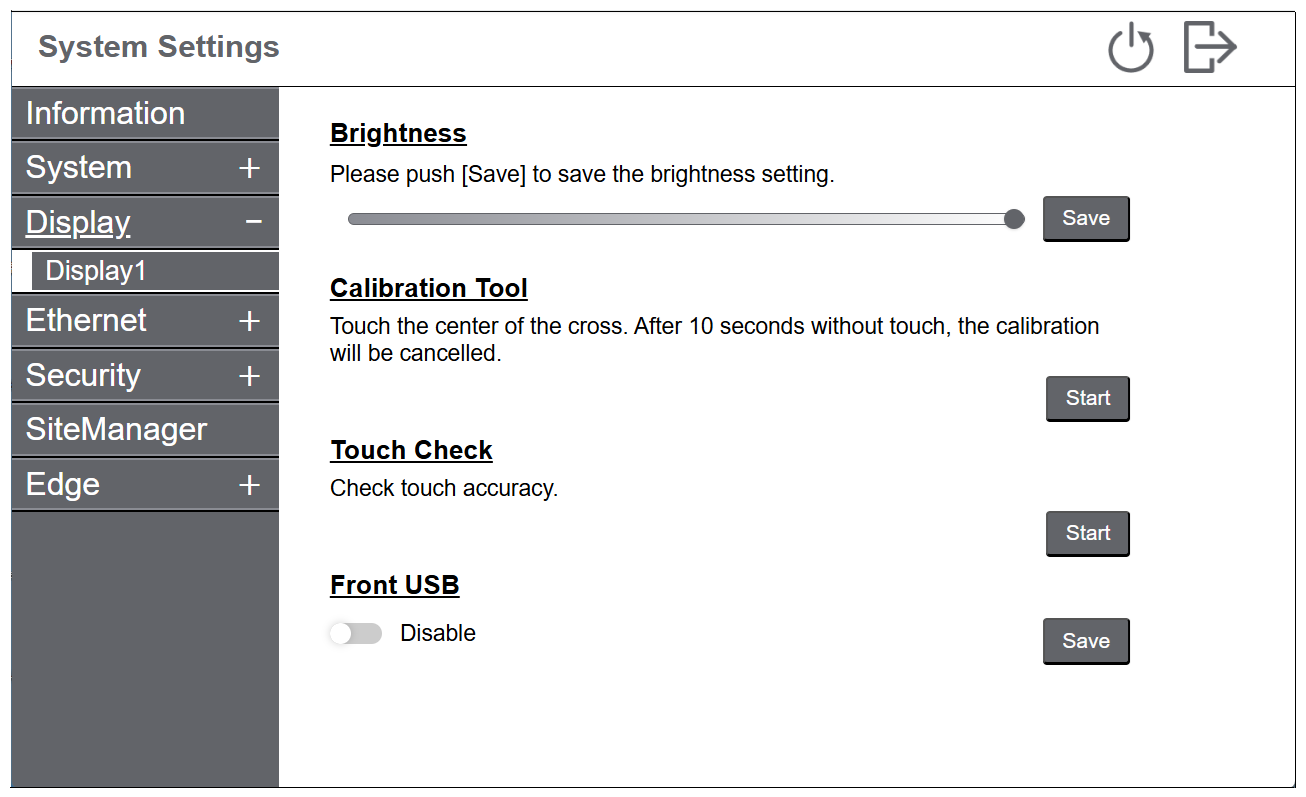
Models equipped with an analog resistive touch panel
|
Function |
Description |
|---|---|
| Brightness |
Set the display brightness. |
| Calibration Tool |
Calibrate the touch coordinates. |
| Touch Check |
Check the operation of the touch panel. The touched position will be highlighted. |
| Front USB |
Toggle between enabling and disabling the front USB ports. Only displayed on models that have front USB ports. Default: Disable NOTE: Enabling the front USB
ports may increase cybersecurity risks. We recommend disabling the
front USB ports when they are not in use.
|
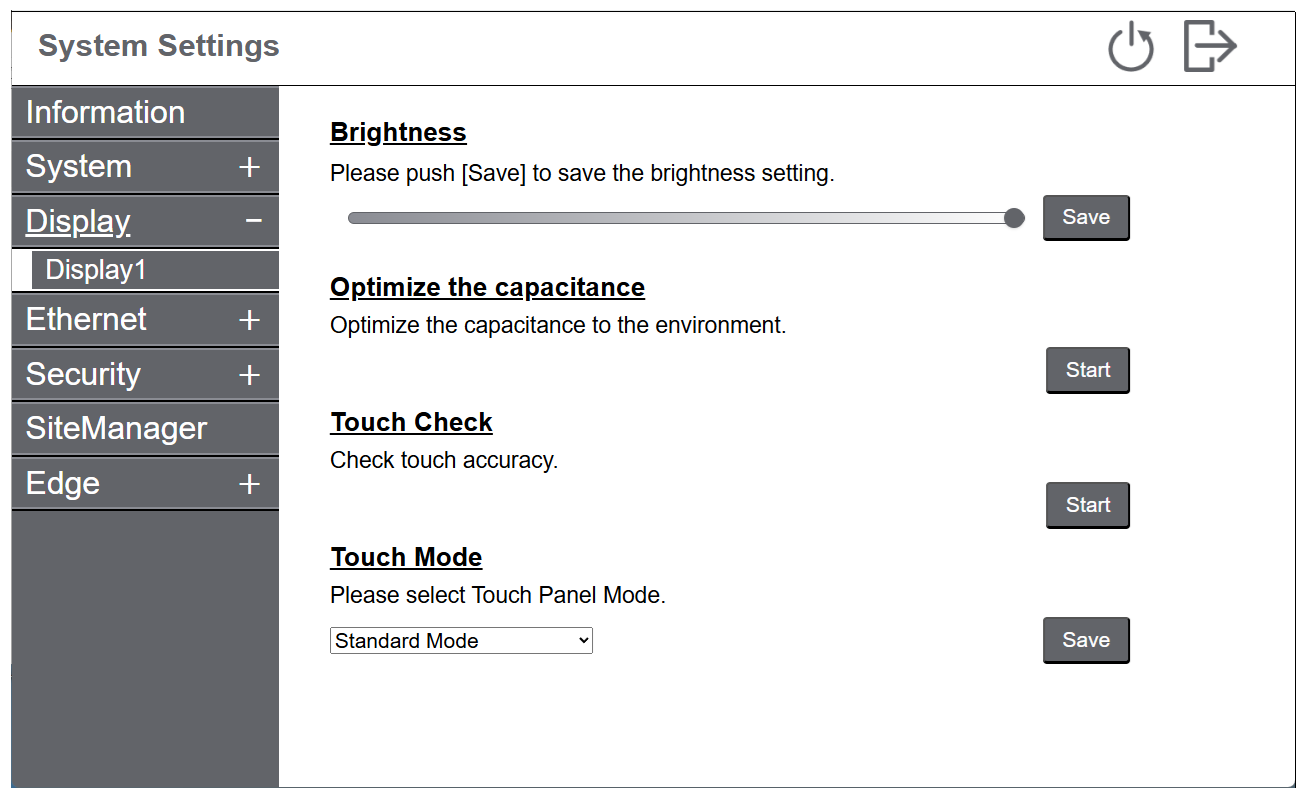
Models equipped with projected capacitive touch panel (PCAP)
|
Function |
Description |
|---|---|
| Brightness |
Set the display brightness. |
| Optimize the capacitance |
Optimizing for capacitive touch. Wipe the screen clean to begin. Do not touch the screen until the process is complete. |
| Touch Check |
Check the operation of the touch panel. The touched position will be highlighted. |
| Touch Mode |
The following three modes are available to support your usage environment. Select the mode according to your usage environment. Standard Mode: Suitable for touch operations using your finger. Water Detection Mode: Mode where touch input becomes disabled when there are liquids, such as drops of water, on the screen. Suitable to prevent touch panel mis-operation due to liquids on the screen. After wiping the liquid or other foreign substance from the screen, touch input becomes enabled in about 2 seconds. Glove Mode: Mode suitable for use with gloves, such as rubber gloves. Default: Standard Mode NOTE:
|