
Change Password
- Log in to the system settings. Refer to How to display the System Settings.
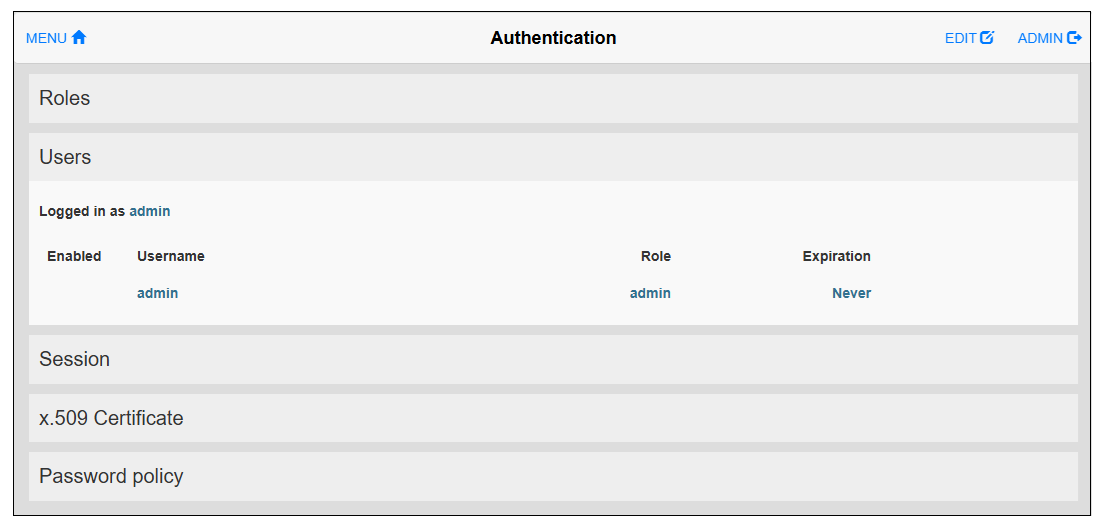
- From the menu, select Authentication. Touch EDIT at the top right
of the screen to switch to editing mode.
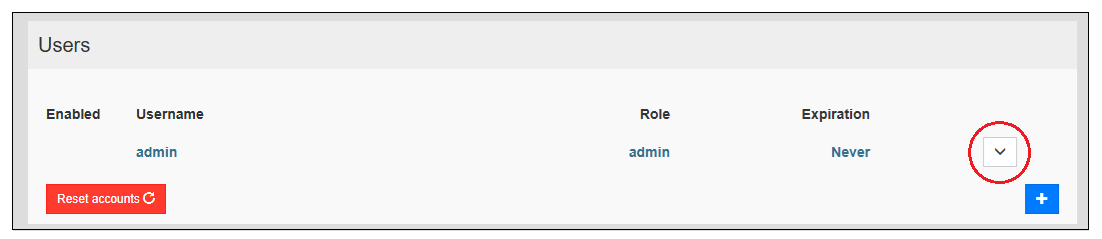
- Touch the down arrow button on the right side of the screen.
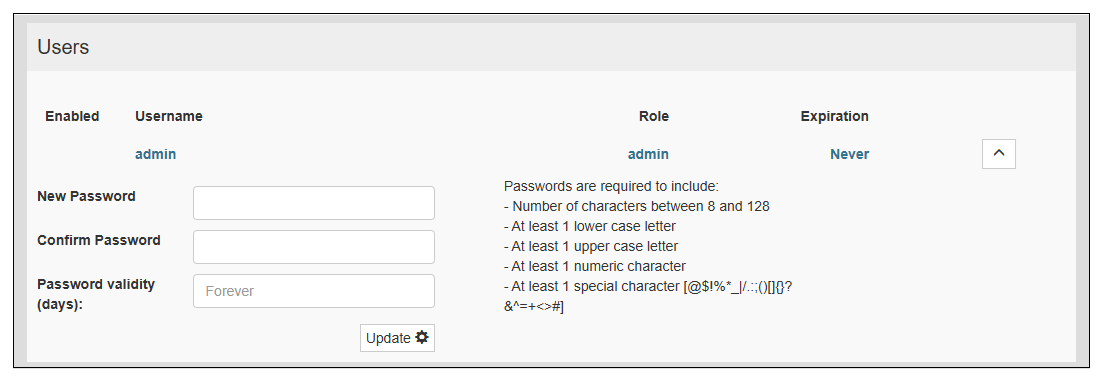
- Enter the new password and set the password validity period
(number of days).
 NOTE:
NOTE:-
You can also modify the password requirements. For information, refer to Authentication - Password policy. By default, passwords should be at least 8 characters long and include at least one uppercase letter, one lowercase letter, one number, and one special character.
-
Please be careful not to forget your password. If you forget the administrator password, you will need to initialize the product. For information on how to initialize the product, refer to Initialization (Device Restore). If you do Device Restore, the user data within the product will be lost.
-
- Touch the Update button.
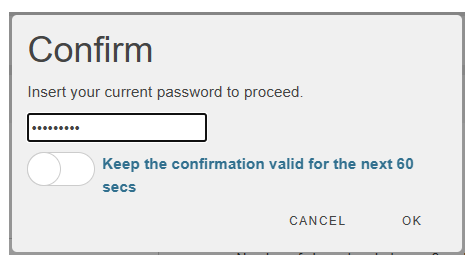
A confirmation dialog will appear. Enter the current password and
touch OK. You will be automatically
logged out, and the login screen will appear. If necessary, please
log in again using your new password.