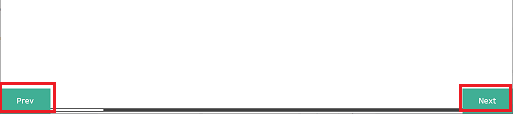
Properties (Root Folder [Screen])
| [Left] |
| Set Left Navigation appearance. |
| [Expander] |
Set display navigation switch appearance.
 |
| [Width] / [Height] |
Set the width and height of the display navigation switch. Setting Value Range:10 - 300 |
| [Fill] |
| Set fill color. |
| [Type] |
Select how to display colors. -[None]: Display no color. -[Solid]: Display a solid color. -[Blink]: Alternate between 2 colors. |
When selecting [Solid]When selecting [Solid]
| [Color] |
| [Value] 'Screens.Left.Expander.Fill.Color.Value' / 'Screens.Left.Expander.Fill.Color.ColorIndexEnabled' |
| Set the display color. To the right of the item name is the current display color. Click the display color to pop up a color palette. Select the color set up method, either [ID] or [RGB], which appears at the top of the color palette. -[ID]: From the color palette, select the display color you want to use. The display color is managed using the ID. While ID numbers are the same between color sets, because the display color depends on the color set, if you change the color set the display color will also change. -[RGB]: Set the display color in RGB format. Either select from the color palette, or enter the RGB value. |
For information about color sets, refer to
the following. Data Binding Support: To use as a Binding Source, refer to the
following. |
| [Transparency] 'Screens.Left.Expander.Fill.Color.Transparency' |
Set the transparency level of the display color. Setting Value Range: 0 - 100 |
Data Binding Support: To use as a Binding Source, refer to the
following. |
When selecting [Blink]When selecting [Blink]
| [Speed] |
Select the speed at which the two display colors switch. |
| [Color] |
| [Value] |
| Set the display color. To the right of the item name is the current display color. Click the display color to pop up a color palette. Select the color set up method, either [ID] or [RGB], which appears at the top of the color palette. -[ID]: From the color palette, select the display color you want to use. The display color is managed using the ID. While ID numbers are the same between color sets, because the display color depends on the color set, if you change the color set the display color will also change. -[RGB]: Set the display color in RGB format. Either select from the color palette, or enter the RGB value. |
For information about color sets, refer to
the following. |
| [Transparency] |
Set the transparency level of the display color. Setting Value Range: 0 - 100 |
| [Font Color] |
| Set font color. |
| [Type] |
Select how to display colors. -[Solid]: Display a solid color. -[Blink]: Alternate between 2 colors. |
When selecting [Solid]When selecting [Solid]
| [Color] |
| [Value] 'Screens.Left.Expander.TextColor.Color.Value' / 'Screens.Left.Expander.TextColor.Color.ColorIndexEnabled' |
| Set the display color. To the right of the item name is the current display color. Click the display color to pop up a color palette. Select the color set up method, either [ID] or [RGB], which appears at the top of the color palette. -[ID]: From the color palette, select the display color you want to use. The display color is managed using the ID. While ID numbers are the same between color sets, because the display color depends on the color set, if you change the color set the display color will also change. -[RGB]: Set the display color in RGB format. Either select from the color palette, or enter the RGB value. |
For information about color sets, refer to
the following. Data Binding Support: To use as a Binding Source, refer to the
following. |
| [Transparency] 'Screens.Left.Expander.TextColor.Color.Transparency' |
Set the transparency level of the display color. Setting Value Range: 0 - 100 |
Data Binding Support: To use as a Binding Source, refer to the
following. |
When selecting [Blink]When selecting [Blink]
| [Speed] |
Select the speed at which the two display colors switch. |
| [Color] |
| [Value] |
| Set the display color. To the right of the item name is the current display color. Click the display color to pop up a color palette. Select the color set up method, either [ID] or [RGB], which appears at the top of the color palette. -[ID]: From the color palette, select the display color you want to use. The display color is managed using the ID. While ID numbers are the same between color sets, because the display color depends on the color set, if you change the color set the display color will also change. -[RGB]: Set the display color in RGB format. Either select from the color palette, or enter the RGB value. |
For information about color sets, refer to
the following. |
| [Transparency] |
Set the transparency level of the display color. Setting Value Range: 0 - 100 |
| [Switches] |
Set navigation switches appearance.
 |
| [Fill] |
| Set fill color. |
| [Type] |
Select how to display colors. -[None]: Display no color. -[Solid]: Display a solid color. -[Blink]: Alternate between 2 colors. |
When selecting [Solid]When selecting [Solid]
| [Color] |
| [Value] 'Screens.Left.Switches.Fill.Color.Value' / 'Screens.Left.Switches.Fill.Color.ColorIndexEnabled' |
| Set the display color. To the right of the item name is the current display color. Click the display color to pop up a color palette. Select the color set up method, either [ID] or [RGB], which appears at the top of the color palette. -[ID]: From the color palette, select the display color you want to use. The display color is managed using the ID. While ID numbers are the same between color sets, because the display color depends on the color set, if you change the color set the display color will also change. -[RGB]: Set the display color in RGB format. Either select from the color palette, or enter the RGB value. |
For information about color sets, refer to
the following. Data Binding Support: To use as a Binding Source, refer to the
following. |
| [Transparency] 'Screens.Left.Switches.Fill.Color.Transparency' |
Set the transparency level of the display color. Setting Value Range: 0 - 100 |
Data Binding Support: To use as a Binding Source, refer to the
following. |
When selecting [Blink]When selecting [Blink]
| [Speed] |
Select the speed at which the two display colors switch. |
| [Color] |
| [Value] |
| Set the display color. To the right of the item name is the current display color. Click the display color to pop up a color palette. Select the color set up method, either [ID] or [RGB], which appears at the top of the color palette. -[ID]: From the color palette, select the display color you want to use. The display color is managed using the ID. While ID numbers are the same between color sets, because the display color depends on the color set, if you change the color set the display color will also change. -[RGB]: Set the display color in RGB format. Either select from the color palette, or enter the RGB value. |
For information about color sets, refer to
the following. |
| [Transparency] |
Set the transparency level of the display color. Setting Value Range: 0 - 100 |
| [Border] |
| Set border color. |
| [Type] |
Select how to display colors. -[None]: Display no color. -[Solid]: Display a solid color. -[Pattern]: Display two colors in a pattern. |
When selecting [Solid]When selecting [Solid]
| [Color] |
| [Value] 'Screens.Left.Switches.Border.Color.Value' / 'Screens.Left.Switches.Border.Color.ColorIndexEnabled' |
| Set the display color. To the right of the item name is the current display color. Click the display color to pop up a color palette. Select the color set up method, either [ID] or [RGB], which appears at the top of the color palette. -[ID]: From the color palette, select the display color you want to use. The display color is managed using the ID. While ID numbers are the same between color sets, because the display color depends on the color set, if you change the color set the display color will also change. -[RGB]: Set the display color in RGB format. Either select from the color palette, or enter the RGB value. |
For information about color sets, refer to
the following. Data Binding Support: To use as a Binding Source, refer to the
following. |
| [Transparency] 'Screens.Left.Switches.Border.Color.Transparency' |
Set the transparency level of the display color. Setting Value Range: 0 - 100 |
Data Binding Support: To use as a Binding Source, refer to the
following. |
When selecting [Blink]When selecting [Blink]
| [Speed] |
Select the speed at which the two display colors switch. |
| [Color] |
| [Value] |
| Set the display color. To the right of the item name is the current display color. Click the display color to pop up a color palette. Select the color set up method, either [ID] or [RGB], which appears at the top of the color palette. -[ID]: From the color palette, select the display color you want to use. The display color is managed using the ID. While ID numbers are the same between color sets, because the display color depends on the color set, if you change the color set the display color will also change. -[RGB]: Set the display color in RGB format. Either select from the color palette, or enter the RGB value. |
For information about color sets, refer to
the following. |
| [Transparency] |
Set the transparency level of the display color. Setting Value Range: 0 - 100 |
| [Show Label] |
Select this check box to display a label on navigation switches. |
Set labels in the screen’s [Label] property in the Properties
screen. The Properties screen appears when a screen is selected
in Project Explorer. |
| [Font Color] |
| Set font color. |
| [Type] |
Select how to display colors. -[Solid]: Display a solid color. -[Blink]: Alternate between 2 colors. |
When selecting [Solid]When selecting [Solid]
| [Color] |
| [Value] 'Screens.Left.Switches.TextColor.Color.Value' / 'Screens.Left.Switches.TextColor.Color.ColorIndexEnabled' |
| Set the display color. To the right of the item name is the current display color. Click the display color to pop up a color palette. Select the color set up method, either [ID] or [RGB], which appears at the top of the color palette. -[ID]: From the color palette, select the display color you want to use. The display color is managed using the ID. While ID numbers are the same between color sets, because the display color depends on the color set, if you change the color set the display color will also change. -[RGB]: Set the display color in RGB format. Either select from the color palette, or enter the RGB value. |
For information about color sets, refer to
the following. Data Binding Support: To use as a Binding Source, refer to the
following. |
| [Transparency] 'Screens.Left.Switches.TextColor.Color.Transparency' |
Set the transparency level of the display color. Setting Value Range: 0 - 100 |
Data Binding Support: To use as a Binding Source, refer to the
following. |
When selecting [Blink]When selecting [Blink]
| [Speed] |
Select the speed at which the two display colors switch. |
| [Color] |
| [Value] |
| Set the display color. To the right of the item name is the current display color. Click the display color to pop up a color palette. Select the color set up method, either [ID] or [RGB], which appears at the top of the color palette. -[ID]: From the color palette, select the display color you want to use. The display color is managed using the ID. While ID numbers are the same between color sets, because the display color depends on the color set, if you change the color set the display color will also change. -[RGB]: Set the display color in RGB format. Either select from the color palette, or enter the RGB value. |
For information about color sets, refer to
the following. |
| [Transparency] |
Set the transparency level of the display color. Setting Value Range: 0 - 100 |
| [Font] |
| Configure font settings. |
| [Size] |
Set the font size. Setting Value Range: 6 - 512 |
Data Binding Support: When used as a Binding Target, the Binding
Sources that can be associated are as follows. For more information of Data Binding concept,
refer to the following. |
 Alarm] [
 Variable] [
 Local Variable] [
 Graphical Object] [
 Target] [
 Equipment] [
 Recipe]
| [Type] |
|
Select the language for the font. When using the Language Table for displayed text content, the font type in the Language Table is used for the string. As a result, when using the Language Table, this property cannot be used to modify or verify the font type. |
|
Data Binding Support: When specifying using a source property, the setting value for items are as follows. When used as a Binding Target, the Binding
Sources that can be associated are as follows. For more information of Data Binding concept,
refer to the following. |
| [Attribute] |
| [Shadow] |
| Set font shadow color. |
| [Color] |
| [Value] 'Screens.Left.Switches.Font.Attribute.Shadow.Color.ColorIndexEnabled' / 'Screens.Left.Switches.Font.Attribute.Shadow.ColorIndexEnabled' |
| Set the display color. To the right of the item name is the current display color. Click the display color to pop up a color palette. Select the color set up method, either [ID] or [RGB], which appears at the top of the color palette. -[ID]: From the color palette, select the display color you want to use. The display color is managed using the ID. While ID numbers are the same between color sets, because the display color depends on the color set, if you change the color set the display color will also change. -[RGB]: Set the display color in RGB format. Either select from the color palette, or enter the RGB value. |
|
For information about color sets, refer to
the following. Data Binding Support: To use as a Binding Source, refer to the
following. When used as a Binding Target, the Binding
Sources that can be associated are as follows. |
| [Transparency] 'Screens.Left.Switches.Font.Attribute.Shadow.Color.Transparency' |
|
Set the transparency level of the display color. Setting Value Range: 0 - 100 |
|
Data Binding Support: To use as a Binding Source, refer to the
following. When used as a Binding Target, the Binding
Sources that can be associated are as follows. |
| [Text Layout] |
| Configure text layout settings. |
| [Rich Text] |
Select this check box to format the text. |
For working with rich text, refer to the following. |
| [Left Padding] / [Top Padding] / [Right Padding] / [Bottom Padding] |
Set the margins between text and the object’s left, top, right, and bottom edges. Setting Value Range: -100 - 1000 |
| [Show Icon] |
Select this check box to display an image on navigation switches. |
Set the image in a screen’s [Image File] property in the Properties
screen. The Properties screen appears when a screen is selected
in Project Explorer. |
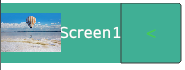
| [Icon] |
| Set Icon Navigation appearance. |
| [Number Of Rows] |
Set the number of rows for navigation switches on the menu screen. If navigation switches exceed the set number of rows, scroll down the menu screen to use them. Setting Value Range:1 - 10 |
| [Number Of Columns] |
Set the number of columns for navigation switches on the menu screen. Setting Value Range:1 - 10 |
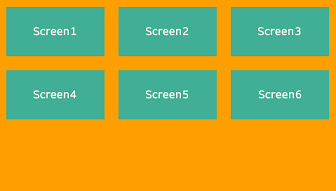
| [Fill] |
Set the background color for home screen.
 |
| [Type] |
Select how to display colors. -[None]: Display no color. -[Solid]: Display a solid color. -[Blink]: Alternate between 2 colors. |
When selecting [Solid]When selecting [Solid]
| [Color] |
| [Value] 'Screens.Icon.Fill.Color.Value' / 'Screens.Icon.Fill.Color.ColorIndexEnabled' |
| Set the display color. To the right of the item name is the current display color. Click the display color to pop up a color palette. Select the color set up method, either [ID] or [RGB], which appears at the top of the color palette. -[ID]: From the color palette, select the display color you want to use. The display color is managed using the ID. While ID numbers are the same between color sets, because the display color depends on the color set, if you change the color set the display color will also change. -[RGB]: Set the display color in RGB format. Either select from the color palette, or enter the RGB value. |
For information about color sets, refer to
the following. Data Binding Support: To use as a Binding Source, refer to the
following. |
| [Transparency] 'Screens.Icon.Fill.Color.Transparency' |
Set the transparency level of the display color. Setting Value Range: 0 - 100 |
Data Binding Support: To use as a Binding Source, refer to the
following. |
When selecting [Blink]When selecting [Blink]
| [Speed] |
Select the speed at which the two display colors switch. |
| [Color] |
| [Value] |
| Set the display color. To the right of the item name is the current display color. Click the display color to pop up a color palette. Select the color set up method, either [ID] or [RGB], which appears at the top of the color palette. -[ID]: From the color palette, select the display color you want to use. The display color is managed using the ID. While ID numbers are the same between color sets, because the display color depends on the color set, if you change the color set the display color will also change. -[RGB]: Set the display color in RGB format. Either select from the color palette, or enter the RGB value. |
For information about color sets, refer to
the following. |
| [Transparency] |
Set the transparency level of the display color. Setting Value Range: 0 - 100 |
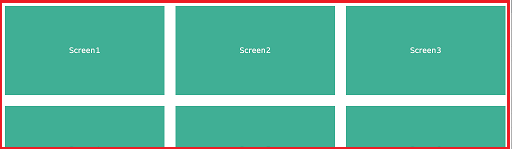
| [Switches] |
Set navigation switches appearance.
 |
| [Fill] |
| Set fill color. |
| [Type] |
Select how to display colors. -[None]: Display no color. -[Solid]: Display a solid color. -[Blink]: Alternate between 2 colors. |
When selecting [Solid]When selecting [Solid]
| [Color] |
| [Value] 'Screens.Icon.Switches.Fill.Color.Value' / 'Screens.Icon.Switches.Fill.Color.ColorIndexEnabled' |
| Set the display color. To the right of the item name is the current display color. Click the display color to pop up a color palette. Select the color set up method, either [ID] or [RGB], which appears at the top of the color palette. -[ID]: From the color palette, select the display color you want to use. The display color is managed using the ID. While ID numbers are the same between color sets, because the display color depends on the color set, if you change the color set the display color will also change. -[RGB]: Set the display color in RGB format. Either select from the color palette, or enter the RGB value. |
For information about color sets, refer to
the following. Data Binding Support: To use as a Binding Source, refer to the
following. |
| [Transparency] 'Screens.Icon.Switches.Fill.Color.Transparency' |
Set the transparency level of the display color. Setting Value Range: 0 - 100 |
Data Binding Support: To use as a Binding Source, refer to the
following. |
When selecting [Blink]When selecting [Blink]
| [Speed] |
Select the speed at which the two display colors switch. |
| [Color] |
| [Value] |
| Set the display color. To the right of the item name is the current display color. Click the display color to pop up a color palette. Select the color set up method, either [ID] or [RGB], which appears at the top of the color palette. -[ID]: From the color palette, select the display color you want to use. The display color is managed using the ID. While ID numbers are the same between color sets, because the display color depends on the color set, if you change the color set the display color will also change. -[RGB]: Set the display color in RGB format. Either select from the color palette, or enter the RGB value. |
For information about color sets, refer to
the following. |
| [Transparency] |
Set the transparency level of the display color. Setting Value Range: 0 - 100 |
| [Border] |
| Set border color. |
| [Type] |
Select how to display colors. -[None]: Display no color. -[Solid]: Display a solid color. -[Pattern]: Display two colors in a pattern. |
When selecting [Solid]When selecting [Solid]
| [Color] |
| [Value] 'Screens.Icon.Switches.Border.Color.Value' / 'Screens.Icon.Switches.Border.Color.ColorIndexEnabled' |
| Set the display color. To the right of the item name is the current display color. Click the display color to pop up a color palette. Select the color set up method, either [ID] or [RGB], which appears at the top of the color palette. -[ID]: From the color palette, select the display color you want to use. The display color is managed using the ID. While ID numbers are the same between color sets, because the display color depends on the color set, if you change the color set the display color will also change. -[RGB]: Set the display color in RGB format. Either select from the color palette, or enter the RGB value. |
For information about color sets, refer to
the following. Data Binding Support: To use as a Binding Source, refer to the
following. |
| [Transparency] 'Screens.Icon.Switches.Border.Color.Transparency' |
Set the transparency level of the display color. Setting Value Range: 0 - 100 |
Data Binding Support: To use as a Binding Source, refer to the
following. |
When selecting [Blink]When selecting [Blink]
| [Speed] |
Select the speed at which the two display colors switch. |
| [Color] |
| [Value] |
| Set the display color. To the right of the item name is the current display color. Click the display color to pop up a color palette. Select the color set up method, either [ID] or [RGB], which appears at the top of the color palette. -[ID]: From the color palette, select the display color you want to use. The display color is managed using the ID. While ID numbers are the same between color sets, because the display color depends on the color set, if you change the color set the display color will also change. -[RGB]: Set the display color in RGB format. Either select from the color palette, or enter the RGB value. |
For information about color sets, refer to
the following. |
| [Transparency] |
Set the transparency level of the display color. Setting Value Range: 0 - 100 |
| [Thickness] |
Set the border width for navigation switches on the menu screen. Setting Value Range: 1 - 9 |
| [Show Label] |
Select this check box to display labels on navigation switches on the menu screen. |
Set labels in the screen’s [Label] property in the Properties
screen. The Properties screen appears when a screen is selected
in Project Explorer. |
| [Font Color] |
| Set font color. |
| [Type] |
Select how to display colors. -[Solid]: Display a solid color. -[Blink]: Alternate between 2 colors. |
When selecting [Solid]When selecting [Solid]
| [Color] |
| [Value] 'Screens.Icon.Switches.TextColor.Color.Value' / 'Screens.Icon.Switches.TextColor.Color.ColorIndexEnabled' |
| Set the display color. To the right of the item name is the current display color. Click the display color to pop up a color palette. Select the color set up method, either [ID] or [RGB], which appears at the top of the color palette. -[ID]: From the color palette, select the display color you want to use. The display color is managed using the ID. While ID numbers are the same between color sets, because the display color depends on the color set, if you change the color set the display color will also change. -[RGB]: Set the display color in RGB format. Either select from the color palette, or enter the RGB value. |
For information about color sets, refer to
the following. Data Binding Support: To use as a Binding Source, refer to the
following. |
| [Transparency] 'Screens.Icon.Switches.TextColor.Color.Transparency' |
Set the transparency level of the display color. Setting Value Range: 0 - 100 |
Data Binding Support: To use as a Binding Source, refer to the
following. |
When selecting [Blink]When selecting [Blink]
| [Speed] |
Select the speed at which the two display colors switch. |
| [Color] |
| [Value] |
| Set the display color. To the right of the item name is the current display color. Click the display color to pop up a color palette. Select the color set up method, either [ID] or [RGB], which appears at the top of the color palette. -[ID]: From the color palette, select the display color you want to use. The display color is managed using the ID. While ID numbers are the same between color sets, because the display color depends on the color set, if you change the color set the display color will also change. -[RGB]: Set the display color in RGB format. Either select from the color palette, or enter the RGB value. |
For information about color sets, refer to
the following. |
| [Transparency] |
Set the transparency level of the display color. Setting Value Range: 0 - 100 |
| [Font] |
| Configure font settings. |
| [Size] |
Set the font size. Setting Value Range: 6 - 512 |
Data Binding Support: When used as a Binding Target, the Binding
Sources that can be associated are as follows. For more information of Data Binding concept,
refer to the following. |
| [Type] |
|
Select the language for the font. When using the Language Table for displayed text content, the font type in the Language Table is used for the string. As a result, when using the Language Table, this property cannot be used to modify or verify the font type. |
|
Data Binding Support: When specifying using a source property, the setting value for items are as follows. When used as a Binding Target, the Binding
Sources that can be associated are as follows. For more information of Data Binding concept,
refer to the following. |
| [Attribute] |
| [Shadow] |
| Set font shadow color. |
| [Color] |
| [Value] 'Screens.Icon.Switches.Font.Attribute.Shadow.Color.Value' / 'Screens.Icon.Switches.Font.Attribute.Shadow.ColorIndexEnabled' |
| Set the display color. To the right of the item name is the current display color. Click the display color to pop up a color palette. Select the color set up method, either [ID] or [RGB], which appears at the top of the color palette. -[ID]: From the color palette, select the display color you want to use. The display color is managed using the ID. While ID numbers are the same between color sets, because the display color depends on the color set, if you change the color set the display color will also change. -[RGB]: Set the display color in RGB format. Either select from the color palette, or enter the RGB value. |
|
For information about color sets, refer to
the following. Data Binding Support: To use as a Binding Source, refer to the
following. When used as a Binding Target, the Binding
Sources that can be associated are as follows. |
| [Transparency] 'Screens.Icon.Switches.Font.Attribute.Shadow.Color.Transparency' |
|
Set the transparency level of the display color. Setting Value Range: 0 - 100 |
|
Data Binding Support: To use as a Binding Source, refer to the
following. When used as a Binding Target, the Binding
Sources that can be associated are as follows. |
| [Text Layout] |
| Configure text layout settings. |
| [Orientation] |
Select the orientation of text. |
When [Vertical] is selected, Japanese, Simplified Chinese,
Traditional Chinese and Korean text flow vertically. |

| [Left Padding] / [Top Padding] / [Right Padding] / [Bottom Padding] |
Set the margins between text and the object’s left, top, right, and bottom edges. Setting Value Range: -100 - 1000 |
| [Show Icon] |
Select this check box to display an image on navigation switches on the menu screen. |
Set the image in a screen’s [Image File] property in the Properties
screen. The Properties screen appears when a screen is selected
in Project Explorer. |

| [Slide] |
| Set Slide Navigation appearance. |
| [Indicator Horizontal Position] |
Select the display position of the indicator. The indicator shows the display layer position of the current screen. |
 |