

System Settings Menu
This section introduces the features in the System Settings.
-
Screenshot images used in this section are for reference only. The actual screen display may differ due to system updates or other reasons.
-
If your screen display includes a feature that is not described in this section, that feature is not supported.
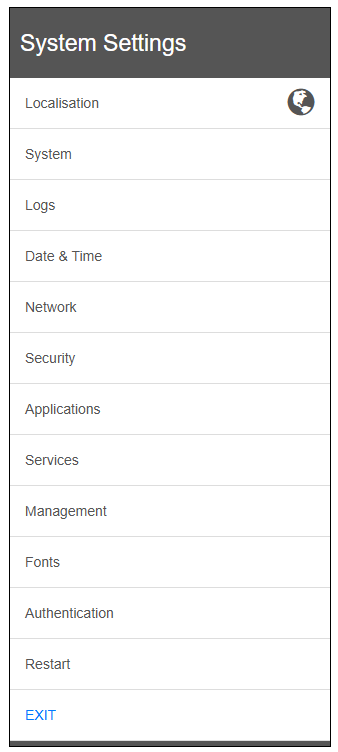
|
Function |
Description |
|---|---|
| Localisation |
Select the language and keyboard for the system settings user interface. |
| System |
Displays the current operation status of the product. |
| Logs |
Exports the system logs in the product. |
| Date & Time |
Set the date and time of the product's internal clock. |
| Network |
Configure network settings such as the IP address. |
| Security |
Controls access to the external storage connected to the product. |
| Applications |
Add or remove applications and configure how they behave when you turn on your product. |
| Services |
Enable/Disable the various services. |
| Management |
Updates system components and applications. |
| Display*1 |
Calibrate the touch panel. |
| Fonts |
Lists the available system fonts. You can also upload custom fonts. NOTE: Please note that using the font files may require a license.
|
| Authentication |
Manage permissions to access the system settings. |
| Restart |
Restart the product. |
| EXIT |
Log out from the system settings. Return to the screen before logging in. |
*1 Display only appears in the menu when you log in to system settings with TAP-TAP operations on the 7-inch wide model. Refer to Display System Settings on the Product Screen.
To change system settings values, enter edit mode by touching the EDIT button at the top right of the screen. The EDIT button is available only in screens with modifiable parameters.