

Set up on Device
- Power on the product.
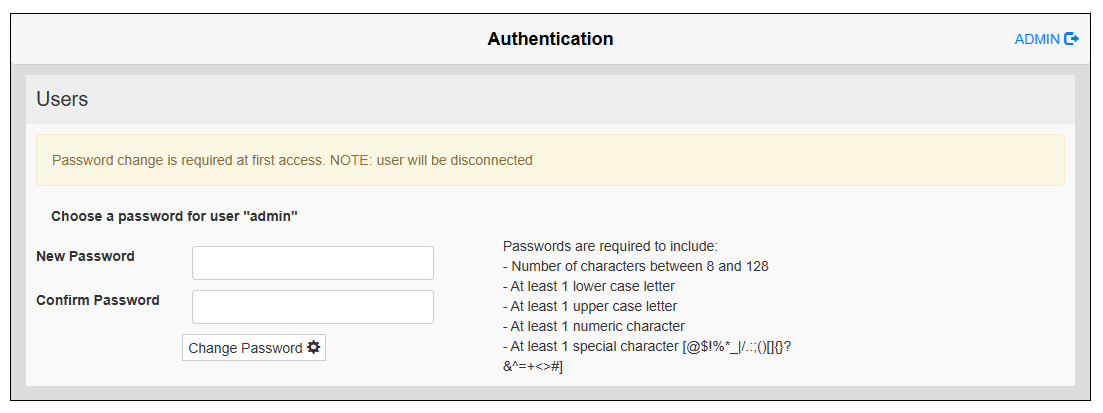
- The Authentication screen is displayed. Set the password for the administrator user
account.
 NOTE:
NOTE:-
Passwords should be at least 8 characters long and include at least one uppercase letter, one lowercase letter, one number, and one special character.
-
You can change the password at any time. For details, refer to Change Password.
-
Please be careful not to forget your password. If you forget the administrator password, you will need to initialize the product. Initializing (device restore) the product will result in the loss of user data stored in the product.
-
- The Welcome screen is displayed. Touch System Settings.
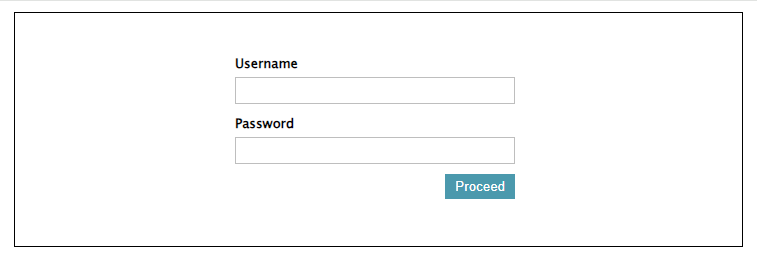
- The login screen is displayed. Enter the username "admin" and the password set earlier, then
touch Proceed.
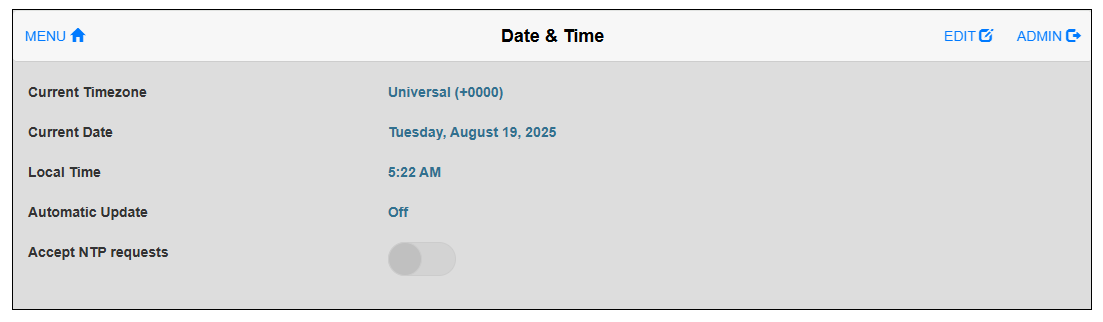
- The system settings menu is displayed. From the menu, select Date & Time. To enter editing mode,
in the top right-hand corner of the screen, touch EDIT. Set the date and time for the product's
internal clock. In the top of the screen, touch SAVE to save the changes.
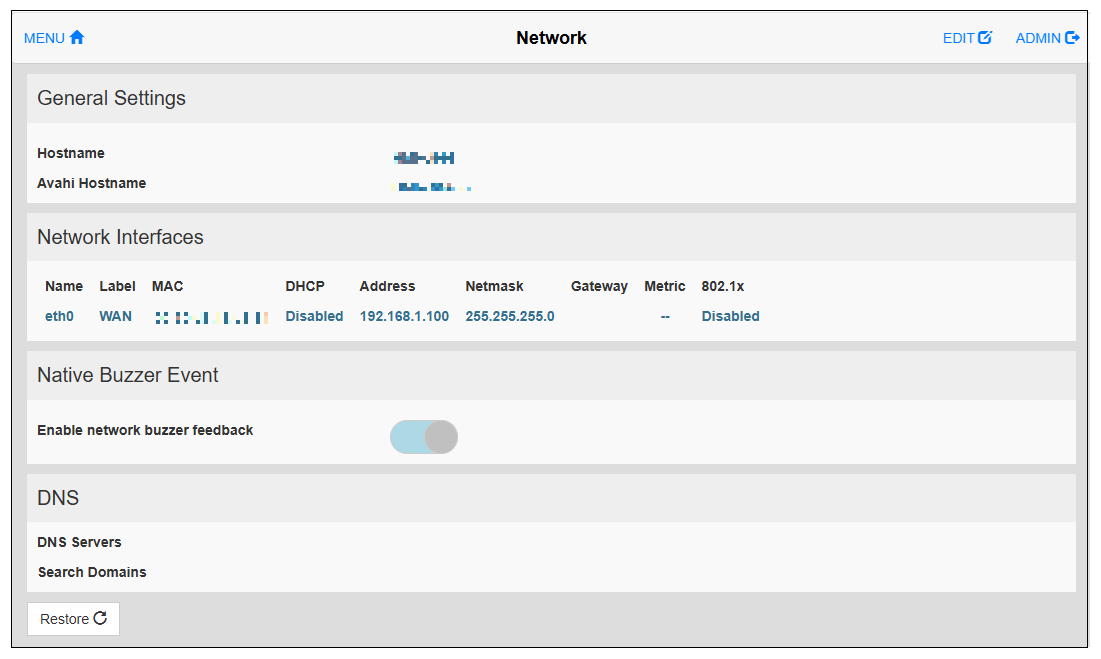
- From the menu, select Network. Select Network Interface and
touch EDIT. Set the product's
IP address, subnet mask, and so on. Touch SAVE to save the changes.
- Change other settings as required.
- From the menu, select EXIT. The Welcome screen is displayed.
- Transfer the project file from the screen editing software.
NOTE: For information on how to display the system settings
after project transfer, refer to Display System Settings on the Product Screen.