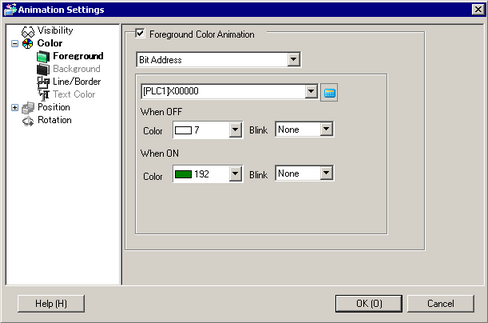
Color
Select the item you want to set up with Color Animation.
Foreground
Changes the color of the object's fill. If the object's [Fill] is not selected, the Foreground animation does not change the color.
Background
Changes the text's background color.
Line/Border
Changes the color of the object's line or border.
Text Color
Changes the text's font color.
Bit Address
The color changes when the specified bit turns ON/OFF.
OFF
Color
Select the color to display when the specified address is OFF.
Blink
Select the blink and blink speed.

Depending on your display unit's model and [Color] settings, you may not be able to set Blink (from the [Project] menu, point to [System Settings] and click [Display Unit]).
 1.6 Supported Colors
ON
Color
Select the color to display when the specified address is ON.
Blink
Select the Part blink and blink speed.
Depending on your display unit's model and [Color] settings, you may not be able to set Blink (from the [Project] menu, point to [System Settings] and click [Display Unit]).
1.6 Supported Colors
Word Address
The color changes when the value changes in the specified word address.
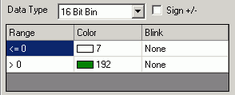
Data Type
Select a data type from [16 Bit Bin], [16 Bit BCD], [32 Bit Bin], or [32 Bit BCD].
Sign +/-
Defines negative number support for display data. Set up when you want to display negative values. Negative values are handled using 2's Complement.
This is available when the [Data Type] is [16 Bit Bin] or [32 Bit Bin].
Range
Define the range of values for the associated color.
Color
Select the color for each specified range.
Blink
Select the Part blink and blink speed.
Depending on your display unit's model and [Color] settings, you may not be able to set Blink (from the [Project] menu, point to [System Settings] and click [Display Unit]).
1.6 Supported Colors
Add
Adds a color range.
Delete
Removes the selected range.
Bool Expression
The color changes when the value of the specified expression changes.
Click  to open the [Bool Expression] dialog box, where you can specify an expression as a condition.
21.7.1.1 [Condition (ON/OFF)] Dialog Box Settings Guide
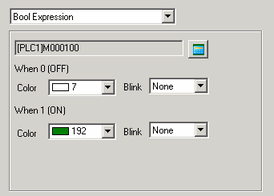
OFF
Color
Select the color when the specified expression is OFF.
Blink
Select the Part blink and blink speed.
Depending on your display unit's model and [Color] settings, you may not be able to set Blink (from the [Project] menu, point to [System Settings] and click [Display Unit]).
1.6 Supported Colors
ON
Color
Select the color when the specified expression is ON.
Blink
Select the Part blink and blink speed.
Depending on your display unit's model and [Color] settings, you may not be able to set Blink (from the [Project] menu, point to [System Settings] and click [Display Unit]).
1.6 Supported Colors
Numeric Expression
The color changes to match the value in the associated address.
Click to open the [Numeric Expression] dialog box, where you can specify an expression as a condition.
21.7.2.1 [Condition (Value)] Dialog Box Settings Guide
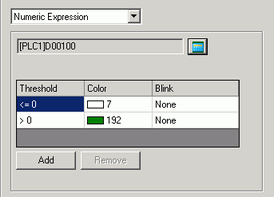
Range
Define the range of values for the associated color.
Color
Set the color for each specified range.
Blink
Select the Part blink and blink speed.
Depending on your display unit's model and [Color] settings, you may not be able to set Blink (from the [Project] menu, point to [System Settings] and click [Display Unit]).
1.6 Supported Colors
Add
Adds a color range.
Delete
Removes the selected range.