If you change from a high resolution display type to a low resolution display type, the object that exceeds the range is not displayed. If you change back to a high resolution display type, the object that exceeded the range is displayed.
The maximum number of display characters on a part differs between a low resolution display type and a high resolution display type. If you change an alarm message created with a high resolution display type to a low resolution display type, any part that does not fall on the message screen is not displayed.
If you convert resolution, the part size, position, and the text size to the display resolution is adjusted automatically. Some scale magnification may not convert properly due to text size and resolution limitations.
When you reduce the screen edit area with the zoom function, some drawings may not display correctly, depending on the magnification. When the drawings do not display correctly, verify in Simulation.
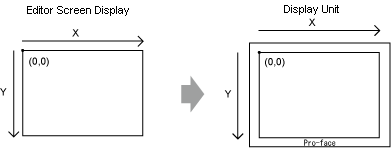
The screen image displayed in the editor may not appear exactly as the screen on the display unit. Before transferring, please check the screen image using Simulation.
Restrictions when display unit's orientation is [Portrait]
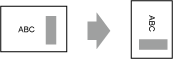
When you change the display unit orientation from [Landscape] to [Portrait], depending on the model, you can rotate the object on the editing screen as described below. Select the object, and from the [Edit] menu, use [Rotate/Flip] to edit.
For ST6000 SeriesĀ (except for the 2nd Gen), STC6000 Series, STM6000 Series, ET6000 Series, SP5000 Series, GP4000 Series (excluding the GP-4100 Series), LT4000 Series, and IPC Series, rotate 270 degrees
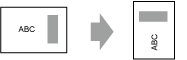
For GP-4100 series, rotate 90 degrees
Depending on the change to the display unit orientation, the object that exceeded the screen edit area is not displayed. Edit the screen, such as the part size and position, as needed.
The system menu, offline mode, and transfer screen use landscape orientation.
Simulation uses landscape orientation.
33.7.1 Restrictions on Simulation
Screen captures use landscape orientation.
Screen hard copies print using landscape orientation.
The remote PC access window display and GP-Viewer EX do not support portait orientation.
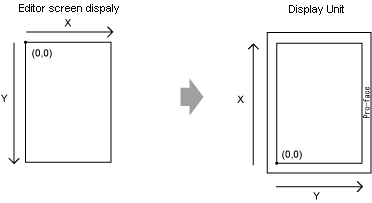
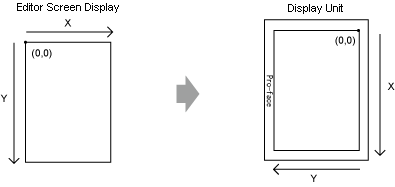
When drawing with [Orientation] set to [Portrait], the following features display in a different position than when [Orientation] is [Landscape]. The difference is due to how the coordinates are calculated on the display unit and the coordinates on the screen editor.
When using the following features with [Portrait] orientation, use the display unit coordinates based on landscape orientation, as shown below.
Picture Display when using [Move Display]
Window when [Window] part's [Window Type]=[Word Action] and [Window Specification]=[Address]
Global Window when you click the [System Settings], select [Display Unit], and in the [Mode] tab, [Global Window Operation]=[Indirect]
Trigger Action when using [Draw Action]
Image Unit Display when its [Video Layout]=[Indirect]
Script when using the [Draw] functions
Internal device when using the areas for getting the touch coordinates (LS9235 to LS9237)
[Orientation]=[Landscape]

When [Orientation]=[Portrait] on the following models
ST6000 SeriesĀ (except for the 2nd Gen), STC6000 Series, STM6000 Series, ET6000 Series, SP5000 Series, GP4000 Series (excluding the GP-4100 Series), LT4000 Series, and IPC Series

When [Orientation]=[Portrait] on GP-4100 series