
-
Please refer to the Settings Guide for details.
 22.10.1 Common Settings (Security Settings) Settings Guide
Please refer to the Settings Guide for details.
22.10.1 Common Settings (Security Settings) Settings Guide
Set the Line Manager screen with a security level and password.
Security level 0 means no security is set.
From the [Common Settings (R)] menu, point to [Security (Q)] and select [Security Password (P)], or from the toolbar click  .
.
Password setting screen will open. Select the [Enable Security Function] check box, select "Level Mode" from the pull-down menu, and enter the password for [Level 1].
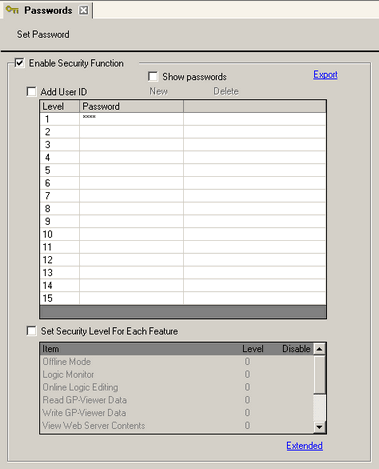
Set a password up to eight single-byte characters long.
When you select "User ID Mode" or "User ID-Enhanced Mode", you can add a user ID to the password. Set the user ID up to 8 single-byte alphanumeric characters long (up to 16 characters long when User ID-Enhanced Mode is selected).
When "User ID-Enhanced Mode" is selected, enter a password between 8 and 16 characters.
Enter the password as a combination of one or more of each of the following characters: upper-case alphabetic character, lower-case alphabetic character, number, and the following symbols.
` ( ) ~ ! @ # $ % & : ; . , - _ { } * + = | < > ? [ ] ` " / ^
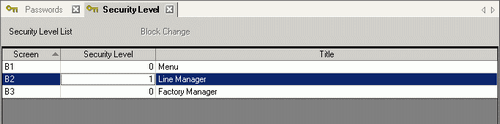
From the [Common Settings (R)] menu, point to [Security (Q)] and select [Security Level List (L)].
For Line Manager (Screen: B2), set the [Security Level] to 1. The security settings are complete.
Once you log in, the security level you logged in at is enabled until you turn off the power.
If you logged in with high security, and you leave your desk, we recommend clearing the security level first to enhance security.
22.10.1.1 Password Settings