Exporting and Importing Logging Settings and Logging Data
Exporting and Importing Logging Settings
You can export and import logging settings of logging groups with assigned variables from the toolbar of the logging editor.
Check the file version of CSV or TXT outputs in the [FileVersion] line of the output file.
The following file formats are supported for importing and exporting the logging settings:
- TXT file (.txt, UTF-8 (without BOM))
- CSV file (.csv, UTF-8 (without BOM))
- Files saved using encoding other than UTF-8 (without BOM) cannot be imported.
- For information on file formats, see the following.
Save Data (Export) File Settings
You can see the exported file using software program such as Microsoft Excel.
The data output is formatted as follows:
- Strings are encapsulated by double-quotation marks (").
E.g. "This is a string" - Special characters "=", "+", "-",
"@", TAB, and ENTER that appear at the beginning of an entry
are prefixed with a single-quotation mark (').
E.g. "'=1+2"
Exporting Logging Data
Logging data can be exported to external storage.
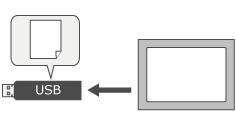
Logging data is exported by following ways:
- By executing Export Log Data operation.
Export Log Data
The following file formats are supported for exporting logging data:
- TXT file (.txt, UTF-8 (without BOM))
- CSV file (.csv, UTF-8 (without BOM))
- Files saved using encoding other than UTF-8 (without BOM) cannot be imported.
- For information on file formats, see the following.
Save Data (Export) File Settings
You can see the exported file using software program such as Microsoft Excel.
The data output is formatted as follows:
- Strings are encapsulated by double-quotation marks (").
E.g. "This is a string" - Special characters "=", "+", "-",
"@", TAB, and ENTER that appear at the beginning of an entry
are prefixed with a single-quotation mark (').
E.g. "'=1+2"
Export Data Settings
You can configure the export data settings in the [Export Data] area in the target logging group properties window. For more details, refer to the following.
Export File
Exported file contains the below data when opened in Microsoft Excel.
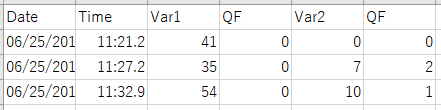
This table indicates a property which corresponding to the exported item.
| Item | Description | ||||||||||||
| Date | Logging date | ||||||||||||
| Time | Logging time | ||||||||||||
| Variable Value | Variable Value assigned to the logging group | ||||||||||||
| QF | Displays the status of the selected variable.
|
- You can configure the date format and time format in the first two columns of exported data in the [Date Format] and [Time Format] properties.
[Target01] property window > [Function] tab > [Options] tab > [Export] > [Content]
For information, refer to the following.
[Date Format]
[Time Format] - In the logging group Property window, when [Detect Modification]
is enabled for [Export Data], an alphanumeric string is added
to the first row in exported files. This alphanumeric string is
used by the Export
File Validation Tool to detect changes to the file
data. When using this tool, do not delete or edit the alphanumeric
string.

For information on the Export File Validation Tool, see the following.
Checking the Modification in Exported File
Export Status
You can save the status of the export process.
You can configure the export status settings in the [Export Status] area in the target logging group properties window. For more details, refer to the following.
Checking the Modification in Exported File
You can check if there is a modification in the exported file by using Export File Validation Tool.
- Start up the Export
File Validation Tool.
This tool is installed in the following path:
Start Menu > BLUE *.* > BLUE *.* Export File Validation Tool
- From the Export File Validation Tool, click […] and select the file.
- Click [Check]
to detect a modification in the exported file.
If no modifications are found, [OK] is displayed.
If a modification is found, [NG] is displayed.
- This tool can be distributed from BLUE installation media ([\Tools] folder).
- If you installed this
tool with a stand-alone installer, use the following to start
the tool.
Start Menu > Pro-face > BLUE TOOLS Export Validation Tool