| Check the following items if a display doesn't respond to touches in the applicable models listed above.
|
| |
| 1. Is a touch panel driver installed? |
|
A touch panel driver is needed for touch operation in IPC.
If there is the [Start] menu -> [Programs] -> [UPDD] in the IPC, the touch panel driver is already installed, and go to the 2.
If there is not, install the touch panel driver. The software is downloadable for free from the following web page.
■ Windows (UPDD)
- Mouse Emulation Software Download Ver.3
■ MS-DOS (ATPH59)
- MS-DOS Touch Panel Communication Program Download | MEMO | | - | For the case of models other than the PL3000, x930, x920, 5910, 5900 and PS-A series, touch panel drivers different from "UPDD" and "ATPH59" are required. |
|
|
| |
| 2. Is the touch panel driver properly configured? (Devices) |
| |
| Go to the [Start] menu, and select [Programs] -> [UPDD] -> [Settings].
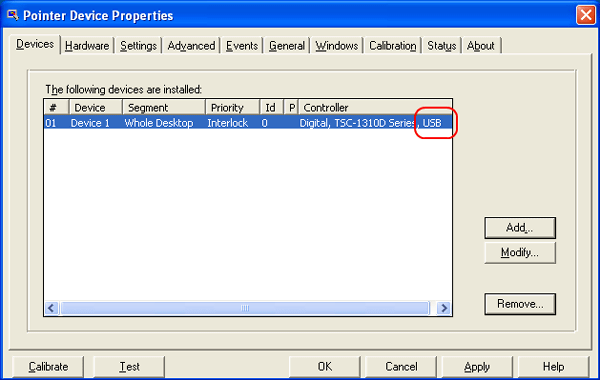
Click the [Devices] tab. The communication method for touch operation is displayed in the area marked with a red cricle.
For USB connection: Digital, TSC-1310D Series, USB
For RS232C connection: Digital, TSC-1310D Series, Serial |
| 
|
| Check whether the communication method in the [Settings] corresponds to the one for the applicable model in the following table.
If it does not correspond, change the setting with the [Modify...] button. | Series | Communication Method | | PL3000 Series | USB | | PLx930 Series | USB | | PLx920 Series | RS232C (COM4) | | PL5910 Series | RS232C (COM4) | | PL5900 Series | RS232C (COM4) | | PS370xA Series | USB | | PS371xA Series | USB | | PS365xA Series | USB | | PS345xA Series | USB |
| MEMO | | - | For the models allowing for switching interface between USB and RS232C, check whether a DIP switch setting corresponds to the communication method.
(The unit should be restarted after the DIP switch setting is changed.)
For DIP switch settings, refer to manuals for each of the models. |
|
|
| |
| 2. Is the touch panel driver properly configured? (Hardware: for RS232C connection) |
|
Go to the [Start] menu, and select [Programs] -> [UPDD] -> [Settings].
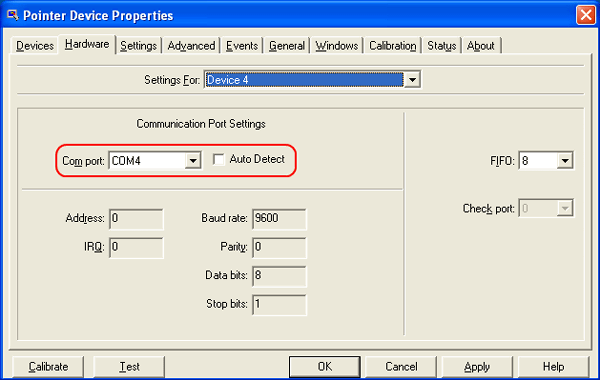
Click the [Hardware] tab to check the [Communication Port Settings], whether "COM4" is selected for the [COM Port] or the [Auto Detect] is unchecked. |
|  |
| |
| 2. Is the touch panel driver properly configured? (Advanced Settings) |
|
Go to the [Start] menu, and select [Programs] -> [UPDD] -> [Settings].
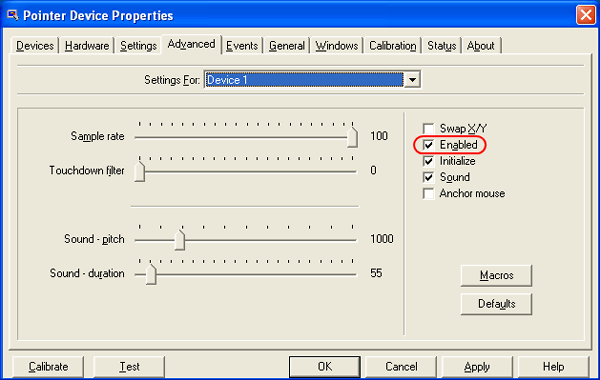
Click the [Advanced] tab, and check whether [Enabled] is checked. |
|  |