| 1. | Go to the [Start] menu, and select [Programs] -> [UPDD] -> [Settings]. |
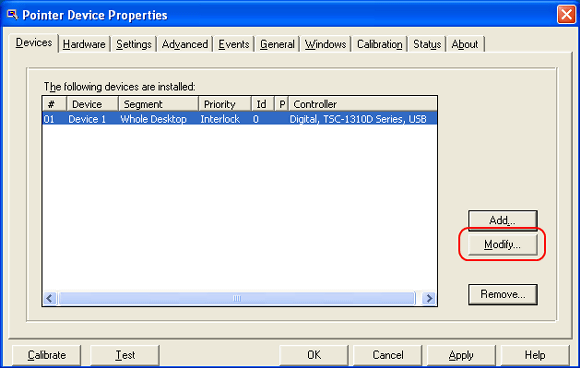
| 2. | Change the settings for PL3900 with the [Modify...] button. |
| 
|
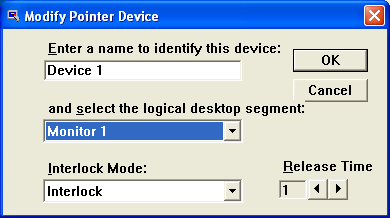
| 3. | Select "Monitor 1" in the [and select the logical desktop segment] box. |
| 
| MEMO | [Interlock Mode]
| | ■ | Admin | | Touch operation can be performed simultaneously on Monitor 1 and Monitor 2. | | ■ | Interlock | | While touch operation is performed on one monitor, the other one does not accept the operation. After the operation on the one monitor is finished and the time set in the [Release Time] passes, the operation can be performed on the other monitor.
(Release Time: 100 = approximately 2 seconds) | | ■ | Disable | | Touch operation cannot be performed on the monitor set as "Disable." |
|
|
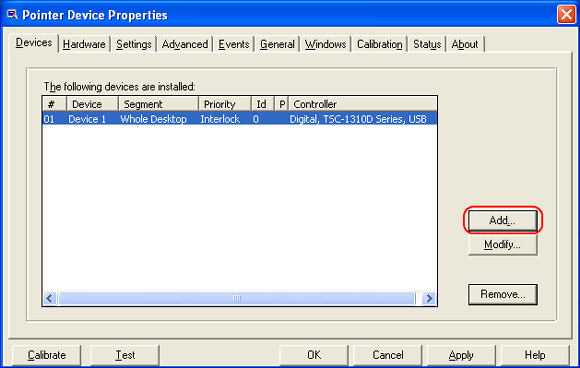
| 4. | Add a touch panel driver for "Monitor 2" with the [Add...] button. |
| 
|
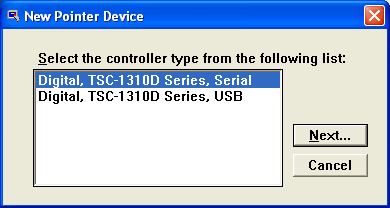
| 5. | Select [Digital, TSC-1310D Series, Serial] and click the [Next...] button. |
| 
|
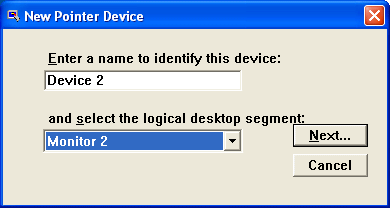
| 6. | Select "Monitor 2 " in the [and select the logical desktop segment] box. |
| 
|
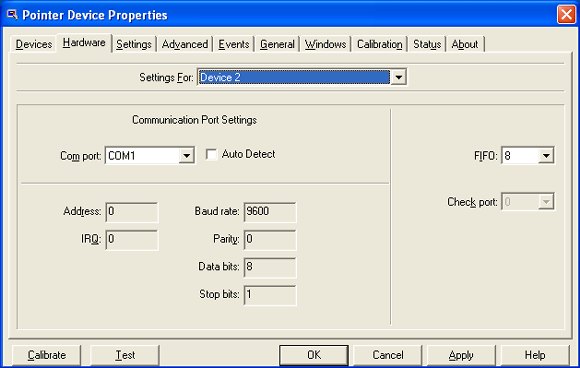
| 7. | Click the [Hardware] tab and select a COM port used for the connection. |
| 
|
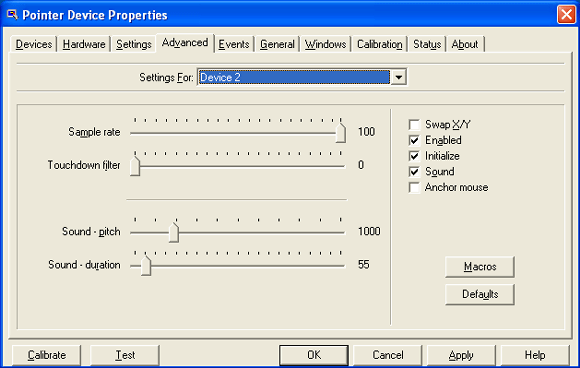
| 8. | Click the [Advanced] tab. Check the [Enabled], and click the [Apply] button. |
| 
|
| | IMPORTANT | | - | Calibration should be done in each monitor. | | - | In the use with PL-3000B + 2 units of FP, touch control should be done with either pattern stated below.
- USB + RS232C
- RS232C + RS232C |
|
|