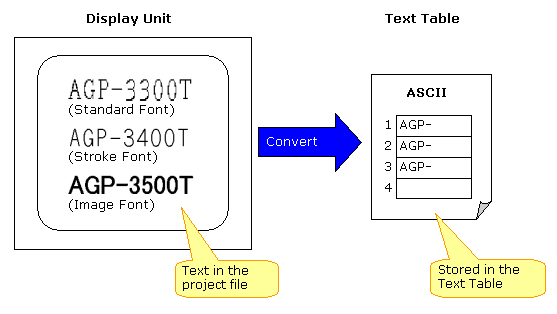
| The Convert Text Table feature registers texts used in a project file to the Text Table.
The Text Table Converter can convert texts (Standard, Stroke, Image fonts) used on the followings in a project file.
- Base Screen
- Window Screen
- Keypad
- Header/Footer
- Text Screen
- Alarm |
|
|
| |
|
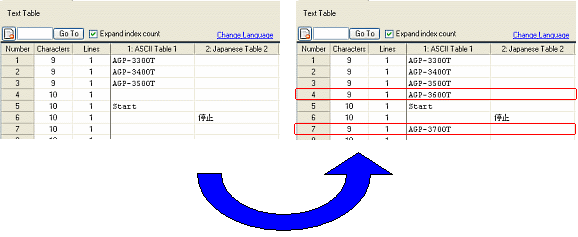
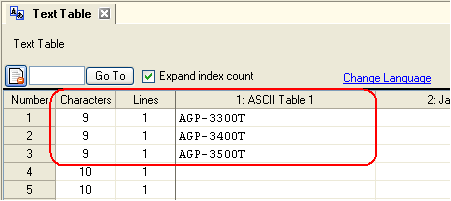
| NOTE | | - | If texts have already been registered in the Text Table, the converted texts are registered to the blank lines in the order from smaller numbers. | | Example: | If there are some blank lines as follows, newly registered texts will be set in the blanks. | | |
|
|
|
| Setup Procedures |
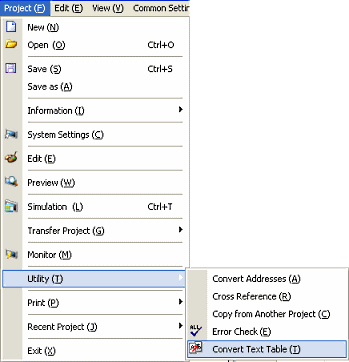
| 1. | Select the [Project (F)] menu -> [Utility (T)] -> [Convert Text Table (T)]. |
|  |
| |
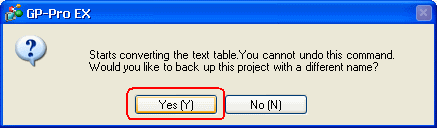
| 2. | The following message window appears. Click [Yes]. |
|  |
| |
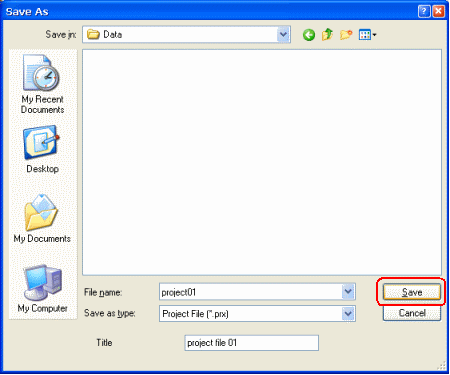
| 3. | Enter the name of the backup file and click [Save]. |
|  |
| |
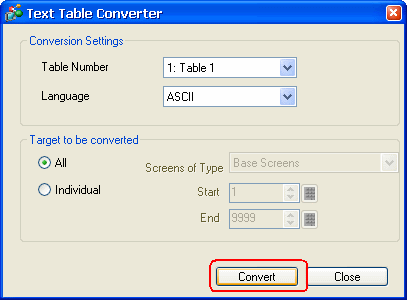
| 4. | The Text Table Converter dialog box opens. Specify the [Table Number], [Language], and the target screens and click [Convert]. |
|  |
| |
| 5. | The specified direct texts have been converted into the Text Table. |
|  |
|
|
|
|