

Settings Workflow
After turning on the product for the very first time, set up the display and Web Browser.
- Connect this product to the Intranet.
- Turn on the product.
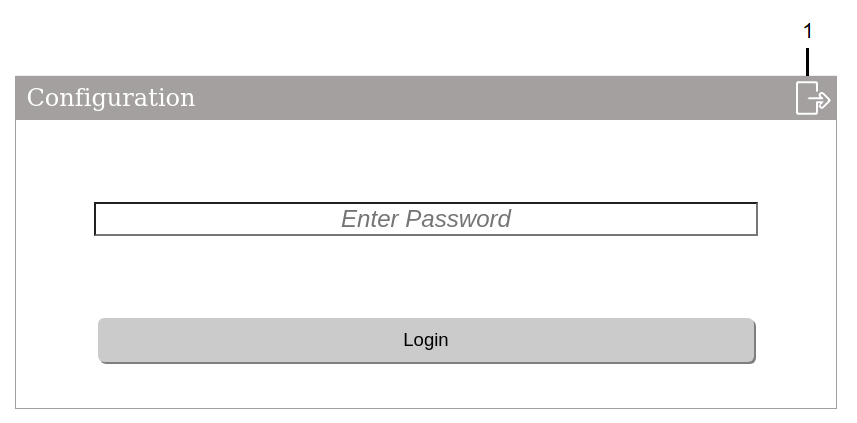
- The password input screen is displayed. Enter the default password Admins and touch Login.
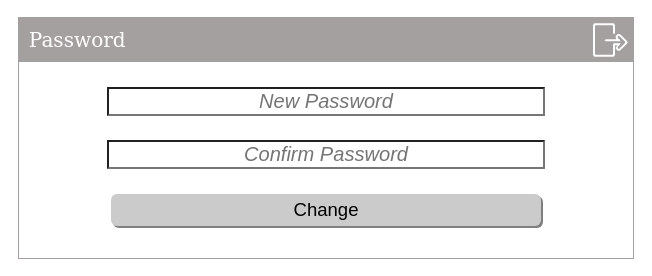
- The password change screen is displayed. Set a new password.
Passwords must be at least 8 alphanumeric characters long and contain
at least one uppercase letter, one lowercase letter, and one number.
 NOTE:
NOTE:-
Right after logging in with the default password, if the password change screen is not displayed, update the product with the latest available system. To update the system, refer to Update the System.
-
Do not lose the password. If you have lost the password, please contact customer support.
-
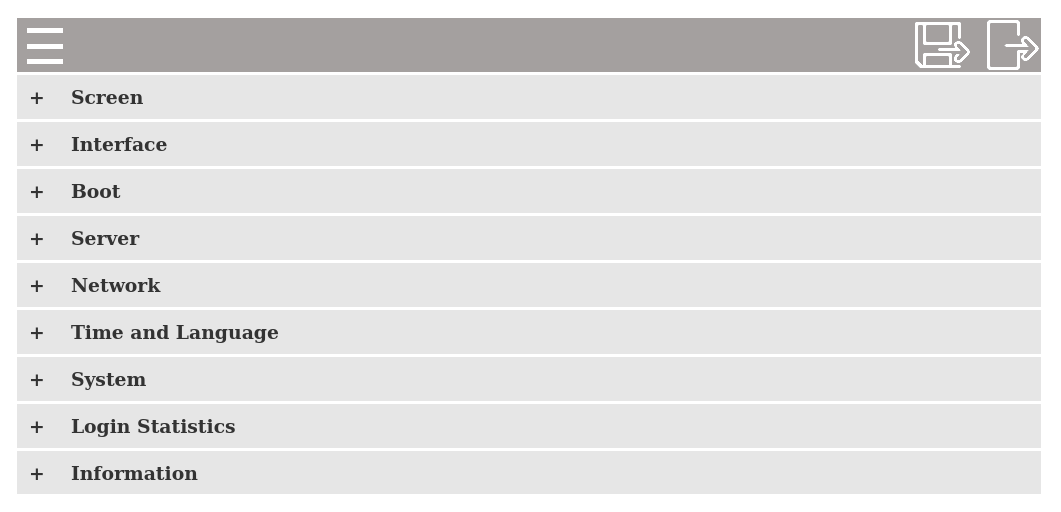
- The Configuration Menu is displayed. Select Network to configure network settings such as the IP address and subnet mask for the product. Set to the same network as the Web server equipment on the Intranet.
- From the Configuration Menu, select Server to register Web server devices connected to the
same Intranet. You can also set a Web server that automatically displays
as the start page at product startup.NOTE: HTTPS communication is not supported.
- Additionally, set up various settings such as Boot, Screen, and so on from the Configuration Menu as required.
- Touch Save & Reboot to save the settings. The product is restarted.
If Boot > Delay Time is set, the following screen appears after the product starts up until the set time elapses.

After the time set in Delay Time elapses, the screen specified in Server > Start Page is displayed.
If Configuration is selected as the Start Page, the password input screen appears after the product starts up. Enter the password and log in.