

Remote Access from a PC
- Attach the product to the network with an Ethernet cable
in the product's LAN port. Connect the computer to the same network
as the product by changing the computer's IP address and subnet mask.NOTE: If you are using Windows 11, set the IP address as follows:
(1) From the Start menu, select Settings > Network & Internet.
(2) Click Properties next to Ethernet.
(3) Click Edit next to IP Address Assignment, select Manual from the drop-down menu, and then click Save.
(4) Enable IPv4, then enter the IP address, subnet mask, etc.
- Open a browser on the computer and enter the following
URL.
https://<IP address>:8443/
Substitute your product's IP address for "<IP address>".
NOTE: If you do not know the product's IP address, refer to Forgot IP Address. - When the connection is established, the HMI device send
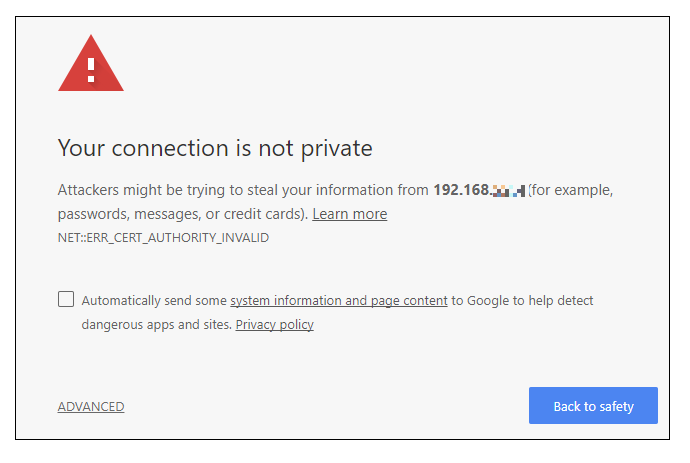
a certificate to use for the encryption. Since the certificate is
not signed from a Certificate Authority you will get a warning message.
Click on ADVANCED options and choose to proceed.
- The System Settings display. If "Use password" is set, the login screen displays. Enter your username and password to log in.