
Password
When using password
Change your password. For instructions, refer to Change Password.
|
Function |
Description |
|---|---|
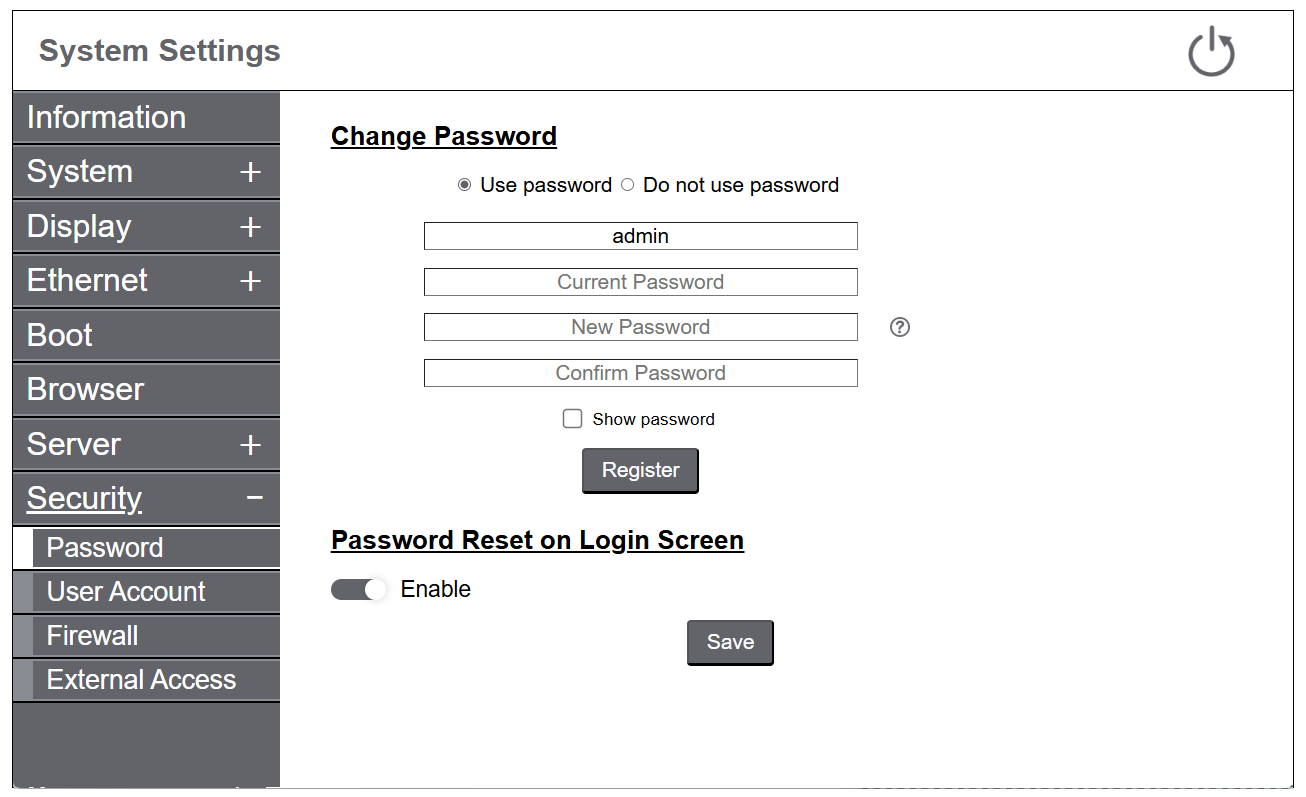
| Use password/Do not use password |
Select whether to require password authentication to access system settings. NOTE:
|
| Enter Administrator Name/Enter User Name |
The currently logged in username is displayed. If you want to change the name, enter one that is 4 to 100 characters long. |
| Current Password |
Enter the password you are currently using. |
| New Password/Confirm Password |
Enter the new password. Refer to Password Requirements. |
| Password Reset on Login Screen |
If enabled, "Can't login" is displayed on the login screen. If you touch it, the password reset screen is displayed. For details, refer to Reset Password. Default: Enable NOTE: If disabled, you cannot reset the administrator password if you forget
it. Please contact customer support. In this case, all data in the
product will be lost.
|
Password Requirements
The password must meet the following requirements:
| Number of characters |
8 characters or more, 100 characters or less |
| Types of characters |
Use at least one of each of the following types of characters:
|
When NOT using password
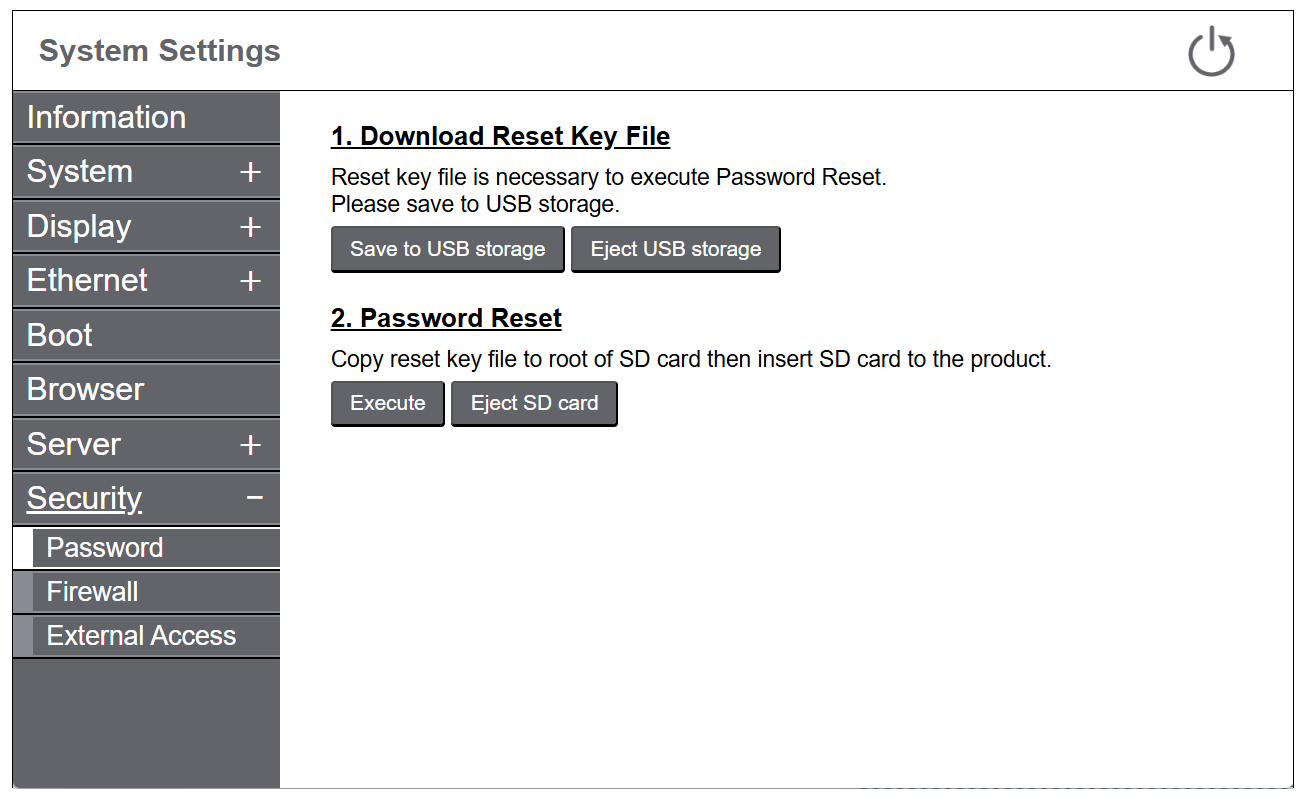
If you want to change from not using password to using it, you need to reset your password. For instructions, refer to Reset Password.
To perform this function, both an optional SD card and a commercially available USB storage device are required. Please prepare external storage formatted with the FAT, FAT32, or exFAT file system.