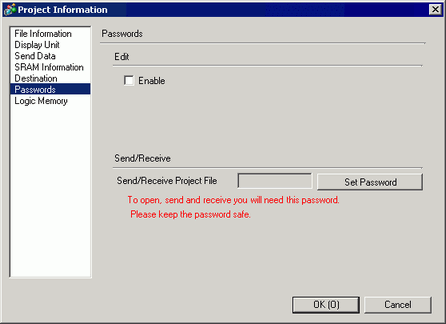
Set a password for editing or transferring a project file.
Edit
Set a password to protect the project or lock part operations.
Enable
Select this check box to display the following dialog box.
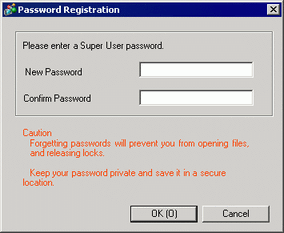
New Password
Set the password with up to 16 single-byte alphanumeric characters and symbols.
Confirm Password
Confirm the password.

Super User rights are required to set up the password.
When the check box is cleared, the password settings are removed. You also need super user rights for clearing this check box.
It is recommended that the password be at least 8 single-byte characters and include one upper-case alphabetic character, one lower-case alphabetic character, one number, and one of the following symbols.
` ( ) ~ ! @ # $ % & : ; . , - _ { } * + = | < > ? [ ] ` " / ^
Current User Level
Displays the user level that can run operations without entering a password.
In the [Set Password] dialog box, you can define the user level in the [Startup User] setting. The user level that you define in the [Startup User] setting becomes the user level the next time the project is opened.
Set Password
Click [Set Password] to display the following dialog box.
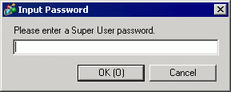
Enter the Super User password and click [OK]. Define the password for each user level.
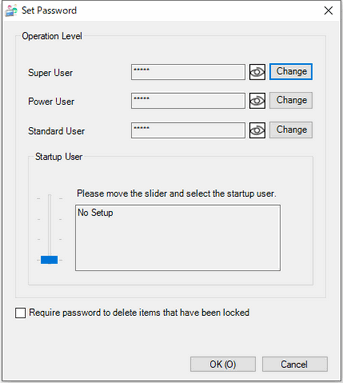
Operation Level
Set up or change passwords for each user level.
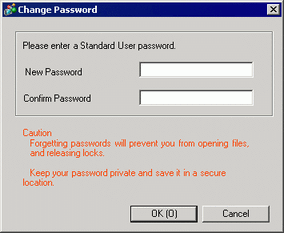
New Password
Set the password with up to 16 single-byte alphanumeric characters and symbols.
Confirm Password
Confirm the password.
It is recommended that the password be at least 8 single-byte characters and include one upper-case alphabetic character, one lower-case alphabetic character, one number, and one of the following symbols.
` ( ) ~ ! @ # $ % & : ; . , - _ { } * + = | < > ? [ ] ` " / ^
Startup User
You can omit password inputs for levels below the selected user level.
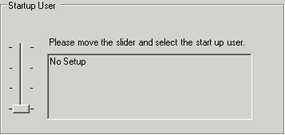
Move the slider to the user level and a description of that user level will be displayed.
Require password to delete items that have been locked
Select this check box to request a password when deleting a base screen or script set with a password.
Delete All Passwords
In [Lock Password] dialog boxes, there is a setting to [Remember Password]. This button removes all memory of these passwords.
Protect Project (Standard User)
Displays the password dialog box when opening the project.
When [Startup User] is not set up, the password you enter here is the password for all users.
If the [Startup User] is higher than the [Standard User], the project file opens without requiring a password.
Send/Receive
Set a password to Permit a project transfer.
Send/Receive Project File
Displays a password for sending/receiving as "*****".
Set Password
Click this button and the following dialog box appears.
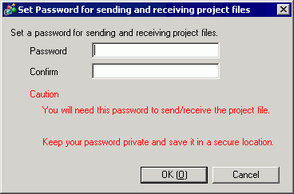
Set Password
If you click [Set Password] when a password is already defined, the following dialog box appears. Change or remove the password.
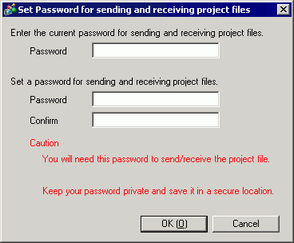
You can define a password with up to 24 single-byte characters.
Confirm
Re-enter the password to confirm.
If you click [OK] with this field left blank, the password will not be set.