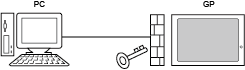
The connection key is the key that enables communication between the display unit and either the GP-Pro EX Transfer Tool or GP-Viewer EX.
The connection key is set on each display unit.
When a connection key is set up, authentication of the key is required before sending or receiving project data or viewing the display unit screen on your computer.

If you forget the connection key, you will not be able to connect to the display unit.

The connection key is set the first time the project file is transferred. Enter offline mode to change or enable/disable the connection key. M.5.4 Changing the Connection Key
The connection key must meet the following requirements:
8 to 100 characters
Use at least one character from each of the following groups: Lowercase letter (a-z), uppercase letter (A-Z), number (0-9), and special character `()~!@#$%&:;.,-_{}*+=|<>?[]'"/\^
If 3 minutes elapse with the [Authentication] dialog box displayed, or an incorrect connection key entered, the connection is terminated.
For models that support the connection key, refer to the following. 1.4 Supported Features
When performing the following operations on the Transfer Tool, the connection key is required.
[Send Project], [Receive Project], [Compare Project], [Display Unit Information], [CF/SD Card Connection], [Transfer Enhanced Recipe], [Send Security Data], [Receive Security Data]
If you initialize the internal memory, the connection key is erased. After initialization, the first time you start the display unit the Connection key settings screen is displayed. Set the connection key again.
The connection key is the key that enables communication with the display unit. To protect sending/receiving a project, refer to the following. 34.7 Secure Transfer with Passwords
How to skip connection key entry during transfer
The procedure for configuring settings to skip connection key entry during transfer will vary depending on whether it is performed during, before, or after the first transfer. The configuration procedures for each instance is as follows.
Configuring during the first transfer
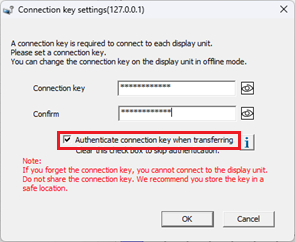
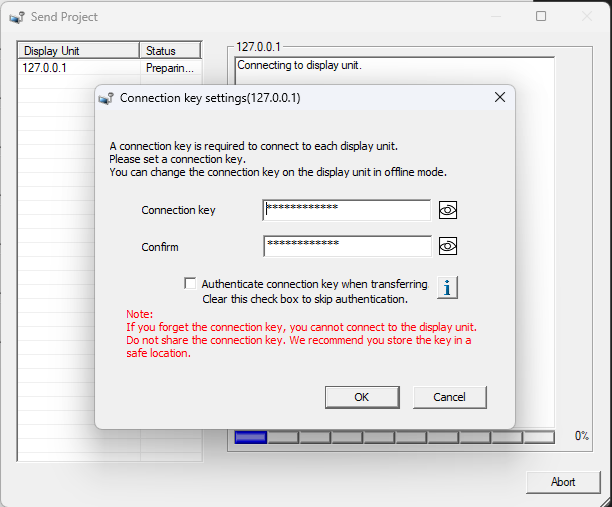
Clear the [Authenticate connection key when transferring] check box in the [Connection key settings] dialog that appears during the first transfer to skip connection key entry for all subsequent transfers.
Configuring before the first transfer ([Transfer Settings] dialog)
Configuring the following settings in the [Transfer Settings] dialog before the first transfer enables connection key entry to be skipped and eliminates the need to clear the [Authenticate connection key when transferring] check box from the first transfer onward.
For details about the setting screen, refer to the setting guide.
34.12.1.1 Transfer Settings
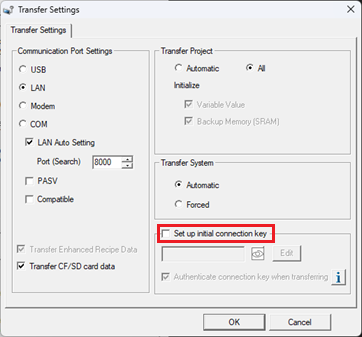
Open the [Transfer Settings] dialog.
Select the [Set up initial connection key] check box.
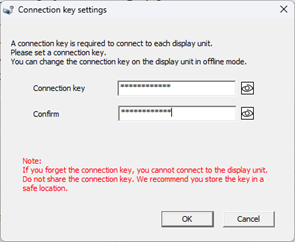
The [Connection key settings] dialog box appears.
Register the connection key in [Connection key] and [Confirm], and then click the [OK] button.
You will return to the [Transfer Settings] dialog. Clear the [Authenticate connection key when transferring] check box.
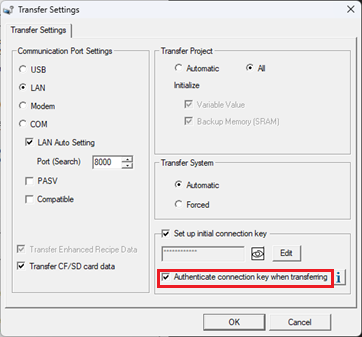
Transferring with the above settings will display the [Connection key settings] dialog box with the settings reflected.
Configuring after the first transfer (Offline mode)
If settings to skip connection key input during the first transfer were not configured, they can be configured in Offline mode under [Security] – [Connection Key].
For details about the setting screen, refer to the setting guide.
M.17.4.3 Security Settings - Connection Key
Go to offline mode and touch [Security Settings] on the item changeover switch.
In the [Security Settings] screen that opens, touch [Connection Key].
The [Connection Key] screen opens. Touch the [Enter current connection key] field to display a keypad and enter the current key.
Clear the [Authenticate connection key when transferring] check box.
Touch [Save].