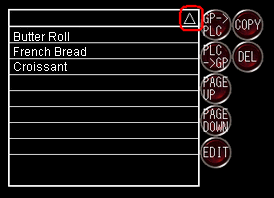
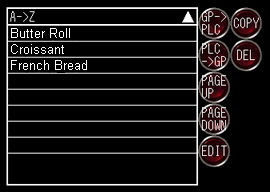
Touch the first row of the Enhanced Recipe List (any area other than the triangles  ,
,  , and
, and  ). Refine Search Keyword is displayed.
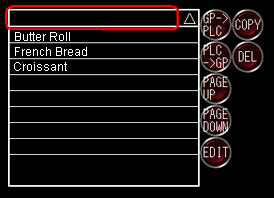

-
If you use both refine search and sort at the same time, either [Refine Search Keyword & A->Z] or [Refine Search Keyword & Z->A] is displayed.
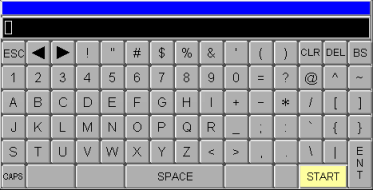
When the keypad appears, enter the word to search for and touch [START].
To search from partial text, combine that text with the wildcard "*". For example, if you enter "*ice*", you can refine the results to items that include "ice" (such as "ice cream", "shaved ice", and "sweet iced tea").
-
This is the same keypad as when searching or sorting in the Alarm part. For more details, please refer to the following.
 19.10.3 Entering Search Conditions
 -
Even if recipe labels are displayed in a language other than Japanese/English, the keypad is in English.
-
The maximum number of characters you can enter as your search criteria is 50 single-byte characters (or 25 double-byte characters).
-
In addition to "*", you can also use "?" as a wildcard for searches.
-
*: Any text
Example: When you specify "Recipe*"
Search results include Recipe A, Recipe AB, Recipe ABC, and so on. -
?: Any single character
Example: When you specify "Recipe??"
Search results include RecipeAB, RecipeXX, and so on. In this case, RecipeA has fewer letters than the search condition, and RecipeABC has more, so these do not appear in the search results. -
To perform case-sensitive searches, turn OFF bit 0 of the system variable #H_RecipeSearchOption.
A.2.2.2 Word Type - #H System Variables -
If a refine search is performed using the system variable #H_RecipeControlSearch, search results also appear in the Enhanced Recipe List. Note that, when there is a large number of search results, a maximum of 64 search results are displayed in recipe ID order.
The search results appear.
-
To cancel only refine search, touch the first row again to display the keypad and touch the [CLR] key to delete the search keyword. While refine search is being canceled, the first row displays [Processing], and recipe labels and triangles for sorting are hidden.
-
The following operations cancel the refine search.
-
Touch the [Clear All] switch.
-
Changing language of recipe labels or element labels
-
Changing the security level for element values on the Enhanced Recipe Data List
-
Screen Change