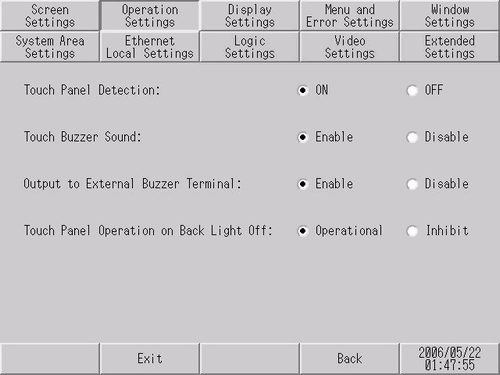
Set up touch operation settings.
Touch Panel Detection
To detect touch on touching the panel, select [ON]. To detect touch on releasing the touch panel, select [OFF].
Touch Buzzer Sound
Specify whether to sound the built-in buzzer upon a touch on the touch panel.
Output to External Buzzer Terminal
Set whether or not to output the touch buzzer sound to the external equipment connected to the display unit.

This setting also applies to sounding the external buzzer (AUX Output) for operations in addition to touch operations.
To control the AUX Output without touching the unit, use the System Data Area control addresses.
 A.1.1.2 System Data Area (Direct Access Method)
System Data Area (Memory Link Method)
For models that support AUX Output, please see the following.
1.4 Supported Features
External Buzzer Output Type
Select the external device for output from [Touch Buzzer Sound] and [System Error Sound].
Available when using the SP5000 series (excluding Standard Box).
Operation on Back Light Off Detection
Set whether or not to enable touch panel operations when the backlight is burned out. Select either [Operational] or [Inhibit].
For models that cannot detect if the backlight is burned out, you cannot enable this setting.
For models that support backlight burnout detection, please refer to the following.
1.4 Supported Features
Interlock-Touch Warning Sound
Toggles ON and OFF the touch warning sound for global interlock and interlock function in parts.
When ON, touching the screen while interlocked (touch is inactive) causes a warning sound which notifies the operator.
Even if you turn ON the [Interlock - Touch Warning Sound] in parts or security settings, the touch warning sound is not emitted if this setting is OFF.
When using display units with one of the following touch panel technologies, touch  to enable the following settings.
Analog touch panel (multi touch)
Matrix touch panel
PCAP Technology
Touch Action
Select whether to enable 2 point touch. For models that support 2 point touch, please see the following.
1.4 Supported Features
Two-Point Touch
You can touch two points on the touch panel simultaneously. If you touch two switches at the same time, both switches will work. Subsequent touches while holding down the first and second switches will not work.
One-Point Touch
You can touch only one point on the touch panel at a time.
If you touch multiple switches at the same time, only the first switch will work. Subsequent touches while holding down the first switch will not work.
Slide Action
If you set [Touch Action] to [1-point touch], you can select from [Enable Sliding] and [None]. Selecting [2-point Touch] automatically sets [Enable Sliding].
Enable Sliding
If your sliding finger moves beyond the switch's touch range while pressing a momentary switch, the touch remains valid until the finger leaves the screen (touch panel).
None
If your sliding finger moves beyond the switch's touch range while pressing a momentary switch, the touch is released.