
-
For details about the setting screen, refer to the setting guide.
 M.17.3.1 Peripheral Settings - Device/PLC Settings
You can adjust or check the communication settings for the connected device. Set these options so that they match with the communication settings of the connected device. The setup items vary depending on the device being connected.
For details about the setting screen, refer to the setting guide.
M.17.3.1 Peripheral Settings - Device/PLC Settings
Serial connection
Enter offline mode and touch [Peripheral Settings] in the item change over buttons.
From the [Peripheral Settings] screen, touch [Device/PLC].
In the [Device/PLC Settings] screen confirm the settings. To change settings, touch the associated item.
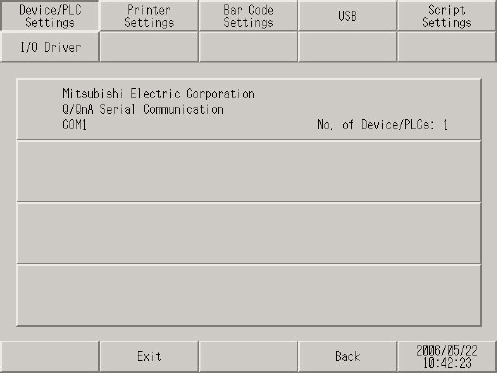
* When changing settings, touch [Exit] to save the changes. After saving, the display unit will restart.
[Communication]
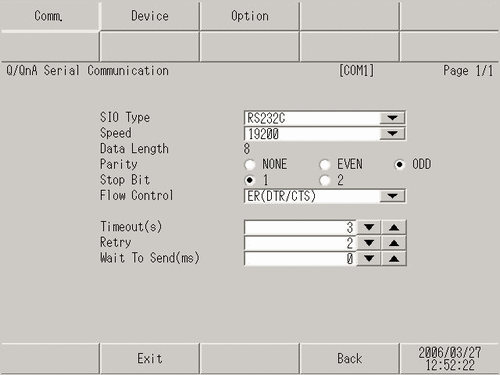
Touch [Communication] to adjust communication settings.
[Device]
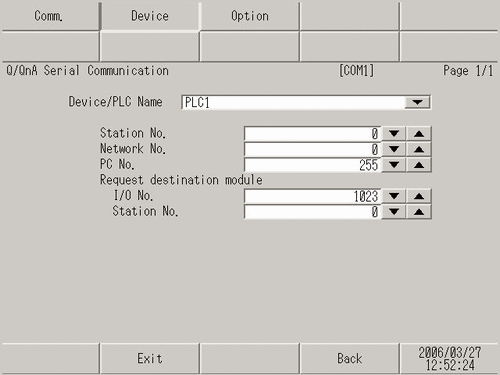
Touch [Device] to adjust the parameters of each connected device.
[Options]
When RS-232C is used, you can change the signal for pin number 9.
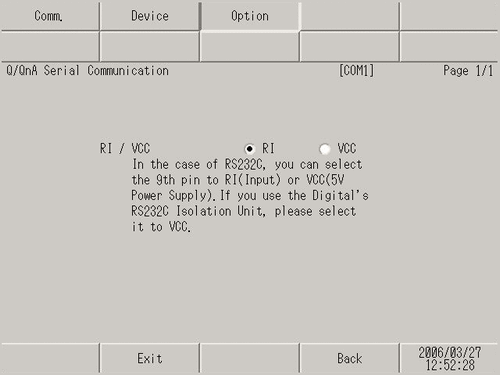
The [Communication], [Device], and [Option] parameters are different between device/PLC series. Please refer to the Device/PLC Connection Manual. However, you should use [Timeout], [Retry], and [Wait to Send] with their initial settings.
Enter offline mode and touch [Peripheral Settings] in the item change over buttons.
From the [Peripheral Settings] screen, touch [Device/PLC].
In the [Device/PLC Settings] screen confirm the settings. To change settings, touch the associated item.
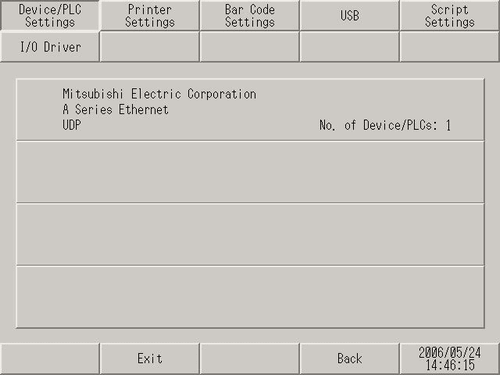
* When changing settings, touch [Exit] to save the changes. After saving, the display unit will restart.
[Communication]
Touch [Communication] to adjust communication settings.
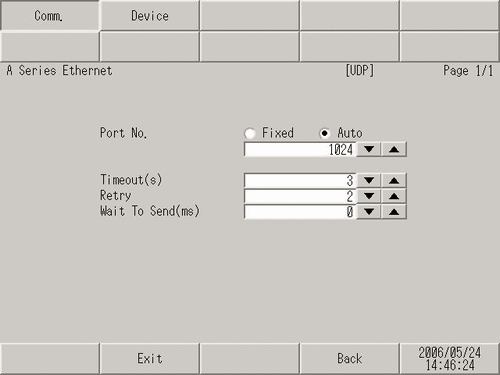
[Device]
Touch [Device] to adjust the parameters of each connected device.
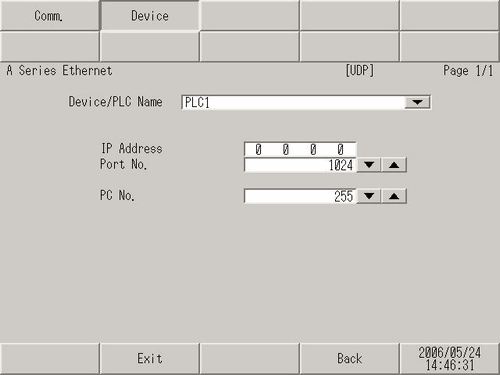
[Communication] and [Device] parameters are different between device/PLC series. Please refer to the Device/PLC Connection Manual. However, you should use [Timeout], [Retry], and [Wait to Send] with their initial settings.