From the [Common Settings (R)] menu, point to [Security (Q)] and select [Security Password (P)] or click  on the toolbar.
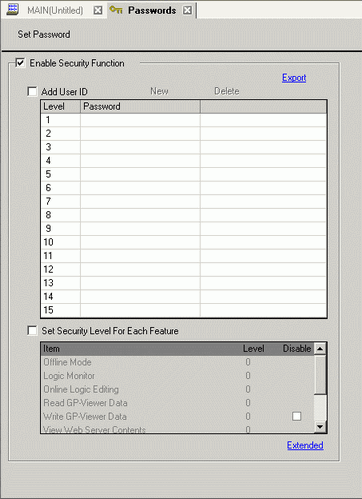
Password setting screen will open. Select the [Enable Security Function] check box, select "Level Mode" from the pull-down menu, and enter the password for the level to use.

-
Set a password up to eight single-byte characters long.
-
When you select "User ID Mode" or "User ID-Enhanced Mode", you can add a user ID to the password. Set the user ID up to 8 single-byte alphanumeric characters long (up to 16 characters long when User ID-Enhanced Mode is selected).
-
When "User ID-Enhanced Mode" is selected, enter a password between 8 and 16 characters.
Enter the password as a combination of one or more of each of the following characters: upper-case alphabetic character, lower-case alphabetic character, number, and the following symbols.
` ( ) ~ ! @ # $ % & : ; . , - _ { } * + = | < > ? [ ] ` " / ^
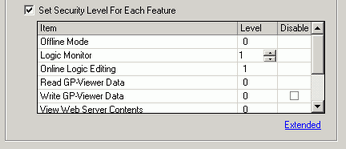
Select [Set up Functions at Each Security Level] and set the level of [Online Logic Editing].
-
The security level of Online Logic Monitor always needs to be equal to or greater than that of the Logic Monitor. To set security for both of these, be sure to set the level of Online Logic Monitor first.
Set the level of the [Logic Monitor].