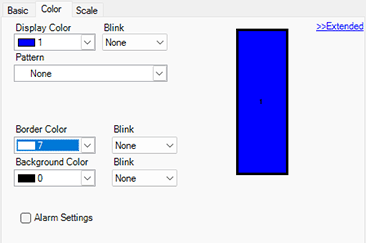
Display Color
Select the display color for the graph.
If [Show Fill] is not selected and a Meter Graph is used, the color set becomes the needle color.
Pattern
Select the graph pattern from 9 types.
Pattern Color
Select the pattern color.
Border Color
Select a color for the graph border.

Some settings cannot be set depending on the part that you chose with [Select Shape].
Background Color
Select the background color for the graph.
Some settings cannot be set depending on the part that you chose with [Select Shape].
Blink
Select the blink and blink speed. You can choose different blink settings for the [Display Color], [Pattern Color], [Border Color], and [Background Color].
Depending on your display unit's model and [Color] settings, you may not be able to set Blink (from the [Project] menu, point to [System Settings] and click [Display Unit]).
 1.6 Supported Colors
Graph Display Sample
Displays a sample of how the graph appears with the [Display Color].
Alarm Settings
Set the graph's color changes when the value goes outside of the set range.
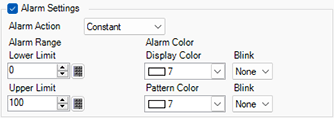
This cannot be set when in the [Extended] settings [Ranges] is 2 or more.
This cannot be set when in the [Extended] settings [Color Specification] is set to [Address].
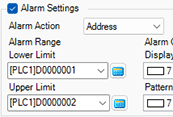
Alarm Action
Choose how the alarm range's upper and lower limit values are specified.
Constant
Specify a set constant as the Min/Max value.
Address
Specify the address where the Upper/Lower Limit values are stored.
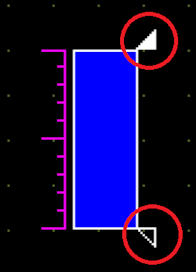
When the [Graph Shape] is [Bar Graph], select a shape and set an alarm with [Alarm Action] set to [Address] to display alarm marks that indicate the upper and lower alarm limits. When the [No Shape] check box is selected, the alarm marks do not display. The shapes of alarm marks depend on the selected part's shape and display direction.
Upper Limit/ Lower Limit
Set the upper and lower limits for the Alarm Range as a percentage from 0 to 100 (from -100 to 100 when the [Display Sign +/-] check box is selected). If [Alarm Action] is [Constant], enter upper/lower limit values. If [Address] is set, specify the Word Address where the upper/lower limit values are stored.
Display Color
Select the graph display color for when the alarm displays.
Pattern Color
Select the pattern color for when the alarm displays.
Blink
Select the blink and blink speed. You can choose different blink settings for the alarm display's [Display Color] and [Pattern Color].
Depending on your display unit's model and [Color] settings, you may not be able to set Blink (from the [Project] menu, point to [System Settings] and click [Display Unit]).
1.6 Supported Colors
Depending on the shape, you may not be able to set a [Display Color], [Pattern Color], or [Border Color].