 19.13.4 Restrictions on Alarm History Sub Display
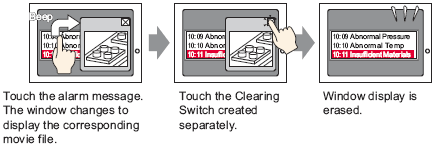
You can set up a sub display that changes the Base screen, Window screen, or PDF Viewer, or a sub display that shows a picture display, message display, or movie player on a Base or Window screen.
19.13.4 Restrictions on Alarm History Sub Display
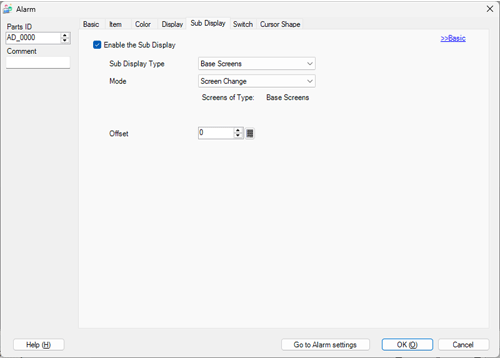
Enable the Sub Display
Select whether or not to use a Sub Display.
Sub Display Type
Select the Sub Display Type.
Base Screen
Change the display to other screen, or display a picture or text directly on a base screen.
Window Screens
Display a Sub Screen in a Window. Change the window to another one, or display a picture or text in the Window.
PDF Viewer
Display a PDF file in the PDF Viewer.

An alarm message with a [Sub Display Screen Number] equal to "0" will not display a Sub Screen. (Displays the Clear Screen.)
Action (Base Screen)
When the [Sub Display Type] is [Base Screen], select one of the following actions: [Screen Change], [Change Picture Display], [Text Display Change], or [Play Movie].
Screen Change
Change the screen to display the sub screen.
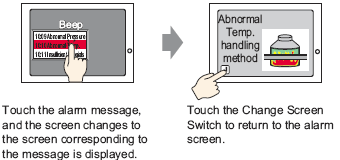
Change Picture Display
Use a Picture Display to display the sub screen.
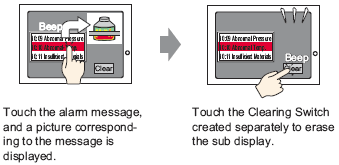
Text Display Change
Use a Message Display to display the sub screen.
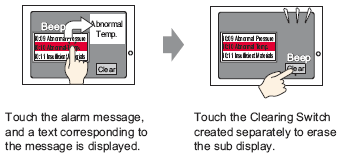
Movie
Use Movie Player to display the sub screen.
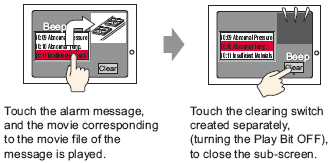
Action (Window)
When the [Sub Display Type] is [Window], select one of the following actions: [Window Change], [Change Picture Display], [Text Display Change], or [Play Movie].
Window Change
Change the Window Screen to display the sub screen.
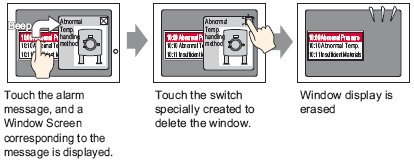
Change Picture Display
Use a Picture Display to display the sub screen.
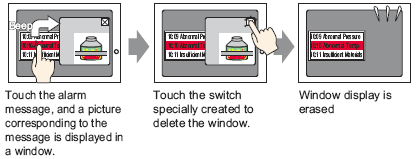
Text Display Change
Use a Message Display to display the sub screen.
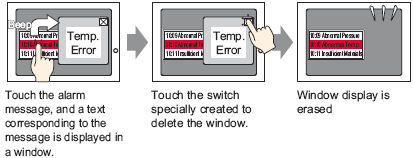
Movie
Use a Movie Player to display the sub screen.
[Base Screen] - [Screen Change]
This setting changes the entire screen to another screen. It works the same as a normal screen change.
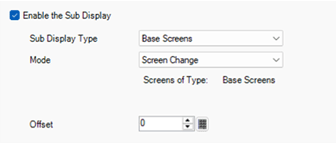
Offset
Set the Offset Value of the Sub Display Screen Number to 0 to 9999. In the [Alarm] settings, the number set up in the [Sub Display Screen Number] field plus the offset defines the screen number that is displayed.
[Base Screen] - [Change Picture Display]
Display a picture corresponding to the Alarm Message in the Picture Display placed on the same screen as the Alarm Part.
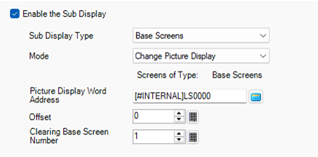
Picture Display Word Address
Specifies the display unit's internal device address (LS area, USR area) that stores the [Sub Display Screen Number] as defined in the [Alarm]. The number stored in this address is the base screen Number displayed on the Picture Display.
Set the same address to the [Word Address] of the Picture Display placed on the same screen as the Alarm Part.
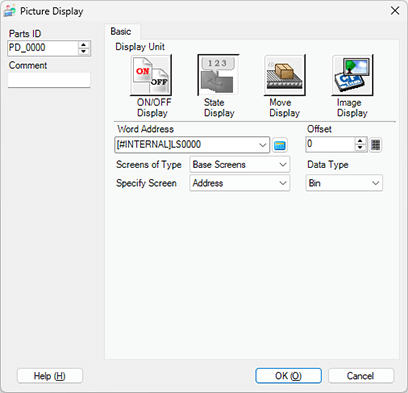
Set the Picture Display's [Screens of Type] to [Base Screen], [Specify Screen] to [Address], and [Data Type] to [Bin].
Offset
Set the Offset Value of the Sub Display Screen Number to 0 to 9999. In the [Alarm] settings, the number set up in the [Sub Display Screen Number] field plus the offset defines the screen number that is displayed.
Clearing Base Screen Number
When you select the [Sub Display Screen Number] in [Alarm] to be Alarm Message "0", the base screen designated here will be called and the previous screen will be erased. Set the screen number that has been created to clear the contents (such as a screen with a black-filled square) from 1 to 9999.
When [Sub Display Type] is [Window], after changing to a screen with alarm parts, you can only display the Clear Screen if you run the sub display one time. To run the sub display, touch an alarm message with a sub display screen number greater than zero.
[Base Screen] - [Text Display Change]
Display a text corresponding to the Alarm Message in the Message Display placed on the same screen as the Alarm Part.
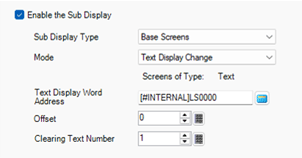
Text Display Word Address
Specifies the display unit's internal device address (LS area, USR area) that stores the [Sub Display Screen Number] as defined in the [Alarm]. The number stored in this address is the text Number displayed on the Message Display.
Set the same address to the [Text File Number Word Address] of the Message Display placed on the same screen as the Alarm Part.
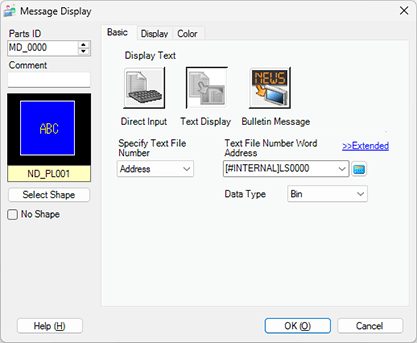
Set the Message Display [Text Display]'s [Specify Text File Number] to [Address], and [Data Type] to [Bin].
Offset
Set the Offset Value of the Sub Display Screen Number to 0 to 8999. In the [Alarm] settings, the number set up in the [Sub Display Screen Number] field plus the offset defines the text that is displayed.
Clearing Text File Number
When you select the [Sub Display Screen Number] in [Alarm] to be Alarm Message "0", the text designated here will be called and the previous text will be erased. Set the text number that has been created to clear the contents (such as text with no content) from 1 to 8999.
When [Sub Display Type] is [Window], after changing to a screen with alarm parts, you can only display the Clear Screen if you run the sub display one time. To run the sub display, touch an alarm message with a sub display screen number greater than zero.
[Base Screen] - [Movie]
Display a video file corresponding to the Alarm Message in the Movie Player on the same screen as the Alarm Part.
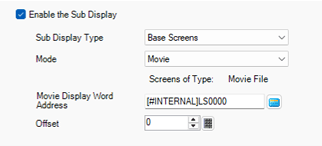
Movie Display Word Address
Specifies the display unit's internal device address (LS area, USR area) that stores the [Sub Display Screen Number] as defined in the [Alarm]. This number can act as the index number of the movie file to display in the movie player.
Set the same address to the Movie Player [Play Control Word Address] property.
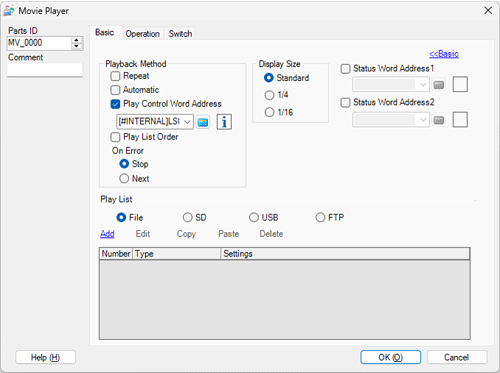
In the Movie Player [Playback Method] properties, clear the [Repeat], [Automatic], and [Play List Order] check boxes, and set [On Error] to [Stop].
Offset
Set the Offset Value of the Sub Display Screen Number to 0 to 99. The number set up in the [Alarm] settings [Sub Display Screen Number] field plus the offset defines the index number of the movie file that is displayed.
[Window Screen] - [Window Change]
Displays the Window Screen which corresponds to the Alarm Message.
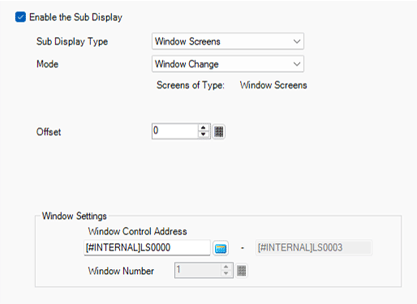
Offset
Set the Offset Value of the Sub Display Screen Number to 0 to 2000. In the [Alarm] settings, the number set up in the [Sub Display Screen Number] field plus the offset defines the screen number that is displayed.
Window Settings
Configure settings to display a Window Part placed on the same screen as the Alarm Part.
Window Control Address
Specify the address to control the Window display. Four consecutive words will be used, starting from the designated address. Only the address of the display unit's internal device (LS area, user area) can be used.
In the [Alarm] settings, the number set up in the [Sub Display Screen Number] field is written to the next address over from the address defined here, which is used to define the window screen to display.
Set the same address to the [Window Control Address] of the Window Part placed on the same screen as the Alarm Part.
11.7.2 Window - Word Action / Basic
Set the Window Part [Window Specification] to [Address], and [Data Type] to [Bin].
[Window Screen] - [Change Picture Display]
Display a picture corresponding to the Alarm Message in the Picture Display placed on the Window Screen.
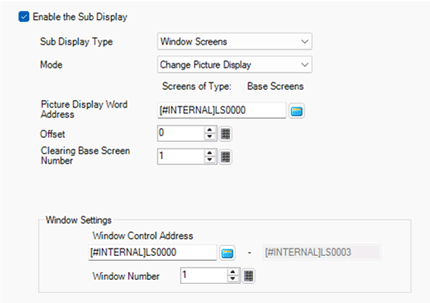
Picture Display Word Address
Specifies the display unit's internal device address (LS area, USR area) that stores the [Sub Display Screen Number] as defined in the [Alarm]. The number stored in this address is the screen Number displayed on the Picture Display.
Set the same address to the [Word Address] of the Picture Display placed on the Window Screen.
Set the Picture Display's [Screens of Type] to [Base Screen], [Specify Screen] to [Address], and [Data Type] to [Bin].
Offset
Set the Offset Value of the Sub Display Screen Number to 0 to 9999. In the [Alarm] settings, the number set up in the [Sub Display Screen Number] field plus the offset defines the screen number that is displayed.
Clearing Base Screen Number
When you select the [Sub Display Screen Number] in [Alarm] to be Alarm Message "0", the base screen designated here will be called and the previous screen will be erased. Set the screen number that has been created to clear the contents (such as a screen with a black-filled square) from 1 to 9999.
When [Sub Display Type] is [Window], after changing to a screen with alarm parts, you can only display the Clear Screen if you run the sub display one time. To run the sub display, touch an alarm message with a sub display screen number greater than zero.
Window Settings
Configure settings to display a Window Part placed on the same screen as the Alarm Part.
Window Control Address
Specify the address to control the Window display. Four consecutive words will be used, starting from the designated address. Only the address of the display unit's internal device (LS area, user area) can be used.
Set the same address to the [Window Control Address] of the Window Part placed on the same screen as the Alarm Part.
11.7.2 Window - Word Action / Basic
Set the Window Part [Window Specification] to [Address], and [Data Type] to [Bin].
Window Number
Defines the number, from 1 to 2000, of the Window Screen (set up with a Picture Display) that you want to display. This number is written to ([Window Control Address]+1).
[Window Screen] - [Text Display Change]
Display a text corresponding to the Alarm Message in the Message Display [Text Display] placed on the Window Screen.
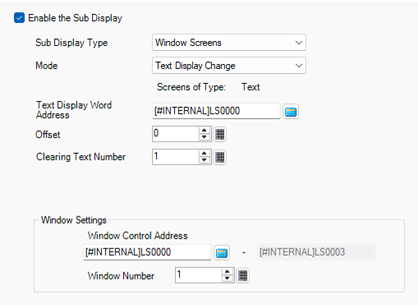
Text Display Word Address
Specifies the display unit's internal device address (LS area, USR area) that stores the [Sub Display Screen Number] as defined in the [Alarm]. The number stored in this address is the text Number displayed on the Message Display.
Set the same address to the [Text File Number Word Address] of the Message Display placed on the Window Screen.
Set the Message Display [Text Display]'s [Specify Text File Number] to [Address], and [Data Type] to [Bin].
Offset
Set the Offset Value of the Sub Display Screen Number to 0 to 8999. In the [Alarm] settings, the number set up in the [Sub Display Screen Number] field plus the offset defines the text that is displayed.
Clearing Text File Number
When you select the [Sub Display Screen Number] in [Alarm] to be Alarm Message "0", the text designated here will be called and the previous text will be erased. Set the text number that has been created to clear the contents (such as text with no content) from 1 to 8999.
When [Sub Display Type] is [Window], after changing to a screen with alarm parts, you can only display the Clear Screen if you run the sub display one time. To run the sub display, touch an alarm message with a sub display screen number greater than zero.
Window Settings
Configure settings to display a Window Part placed on the same screen as the Alarm Part.
Window Control Address
Specify the address to control the Window display. Four consecutive words will be used, starting from the designated address. Only the address of the display unit's internal device (LS area, user area) can be used.
Set the same address to the [Window Control Address] of the Window Part placed on the same screen as the Alarm Part.
11.7.2 Window - Word Action / Basic
Set the Window Part [Window Specification] to [Address], and [Data Type] to [Bin].
Window Number
Set the Window Screen to display (the window that contains the Message Display) from 1 to 2000. This number is written to ([Window Control Address]+1).
[Window Screen] - [Movie]
Sub-display Movie Player that is positioned on the Window Screen.
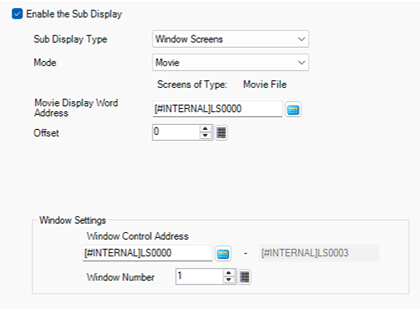
Movie Display Word Address
Specifies the display unit's internal device address (LS area, USR area) that stores the [Sub Display Screen Number] as defined in the [Alarm]. This number can act as the index number of the movie file to display in the movie player.
Set the same address to the Movie Player [Play Control Word Address] property.
In the Movie Player [Playback Method] properties, clear the [Repeat], [Automatic], and [Play List Order] check boxes, and set [On Error] to [Stop].
Offset
Set the Offset Value of the Sub Display Screen Number to 0 to 99. The number set up in the [Alarm] settings [Sub Display Screen Number] field plus the offset defines the index number of the movie file that is displayed.
Window Settings
Configure settings to display a Window Part placed on the same screen as the Alarm Part.
Window Control Address
Specify the address to control the Window display. Four consecutive words will be used, starting from the designated address. Only the address of the display unit's internal device (LS area, user area) can be used.
In the [Alarm] settings, the number set up in the [Sub Display Screen Number] field is written to the next address over from the address defined here, which is used to define the window screen to display.
Set the same address to the Window Part's [Window Control Address] as the Alarm part on the same screen.
11.7.2 Window - Word Action / Basic
Set the Window Part [Window Specification] to [Address], and [Data Type] to [Bin].
Window Number
Defines the number, from 1 to 2000, of the Window Screen (set up with a Movie Player) that you want to display. This number is written to ([Window Control Address]+1).
PDF Viewer
Display the PDF Viewer.
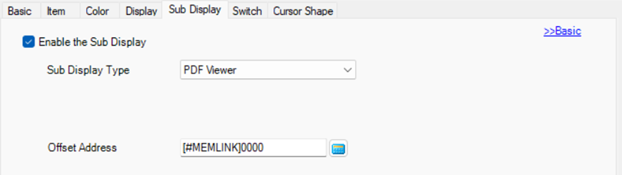
Offset Address
Specifies the device address or the display unit's internal device address (LS area, USR area) that stores the offset value of the sub display screen number. The number set up in the [Sub Display Screen Number] field in the [Alarm] settings plus the offset defines the PDF file number that is displayed.
When communicating with connected devices using the Direct Access Method, the display unit's internal device consists of two areas: the [LS] area and [USR] area. For available addresses in the LS area, refer to the following:
A.1.1 LS Area (Direct Access Method Area)