Exporting and Importing Variables
In the screen editing software, you can execute exporting and importing of global variables by using the Variable editor toolbar. A property of an alarm and logging are included in the export item. Exporting and importing local variables is not supported.
-
Although you can import data exported as CSV or TXT files from screen editing
software version 3.3 Service Pack 1 or earlier into screen editing
software version 3.4 or later, files exported from version 3.4 or later
cannot be imported into version 3.3 Service Pack 1 or earlier, as
the file version is 2.0.
Check the file version of CSV or TXT outputs in the [FileVersion] line of the output file. - Excel files are supported for variable export and import from version 4.4 onward.
The following file formats are supported for importing and exporting variables:
- TXT file (.txt, UTF-8 (without BOM))
- CSV file (.csv, UTF-8 (without BOM))
- Microsoft Excel file (.xlsx)
Microsoft Excel file
- To export and import variables in Excel files, Microsoft Excel is required. The screen editing software supports Microsoft Excel 2016, 2019, and 365.
- When you export variables to an Excel file, you can set a password to encrypt it. Setting a complex password is recommended. If you forget the password, it cannot be recovered.
- The screen editing software does not support Excel Information Rights Management (IRM).
TXT or CSV file
- When you export variables to a TXT or CSV file, select the delimiter.
- TXT or CSV files saved using encoding other than UTF-8 (without BOM) cannot be imported.
- For information on file formats, see the following.
Save Data (Export) File Settings
You can see the exported file using software programs such as Microsoft Excel.
The data output is formatted as follows:
- Strings are encapsulated by double-quotation marks (").
E.g. "This is a string" - Special characters "=", "+", "-",
"@", TAB, and ENTER that appear at the beginning of an entry
are prefixed with a single-quotation mark (').
E.g. "'=1+2"
Notes on Importing Variables
- When importing, if a scan rate with same name does not exist, then a new scan rate is created with the interval from the exported file. If the scan rate already exists in the project, the scan rate is updated.
- If you import a file exported from screen editing software version 3.1 Service Pack 1B or earlier, external variables are assigned the default scan rate. For information about scan rates, refer to the following.
Setting the Interval for Reading External Variable Values (Scan Rate) - Variables that were imported using symbol file import cannot be updated with the import variable command. To update the variables in the symbol file, refer to the following.
Importing Symbols from External Devices - Notes after Importing the Symbol File - You cannot import variables to a project that contains a symbol file. To import variables, follow these steps.
- Remove the symbol file from the project.
- Export the variables from the project.
- Import the variables to the project.
- Import the symbol file to the project.
- There is a naming convention for variable names in the screen editing software.
If a variable name contains characters that do not follow the naming convention, the variable is not imported.
For details, refer to the following.
Naming Conventions
When Importing an Excel File
- When you import a protected Excel file, you need to enter the password.
- Only values are imported from Excel files. Macros and formulas are not recalculated during import.
- The FileVersion on the [Summary] sheet is verified during import. The other count values are ignored.
- The maximum file size you can import is 100 MB.
Variable Format
Exported Excel File Structure
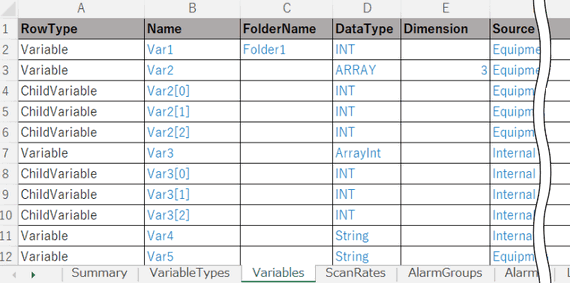
In the exported Excel file, the data is organized into the following sheets, each containing specific information:
- Summary: Overview of all exported variables.
- VariableTypes: Variable Types such as array or structure, if present.
- Variables: Variable data.
- ScanRates: Scan rates, if present.
- AlarmGroups: All alarm groups even if no alarms are set.
- Alarms: Alarms, if present.
- LoggingGroups: All logging groups, even if they contain no variables.
- LoggingRecords: Variables, if present.
Example: Variables sheet
- You can only edit the data in blue text. If the format is modified, you cannot import the file. All columns are required.
- Sheets and columns can be in any order.
Exported CSV File Structure
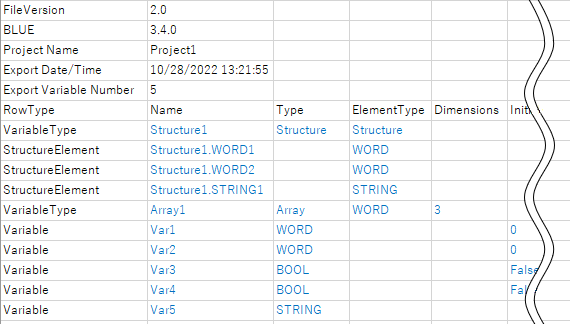
When opened in Excel, the exported CSV file is organized as shown below.
You can only edit the data in blue text. If the format is modified, you cannot import the file.
Export Items
This table indicates a property which corresponding to the exported item.
The item whose property is not set, will be blank.
Exported Excel File Items
[VariableTypes]
| Items | Property | The Location with the Property | Available Value |
|
Name |
[Name] |
[All User Data Types] |
Following the naming conventions. |
| Type | [Data Type] | [All User Data Types] | Following the supporting data type. |
| ElementTypeName | Indicates data type of array element or structure member. | [All User Data Types] | Following the supporting data type. |
| Dimensions | [Dimension] | [All User Data Types] | Following the supporting range of property. |
[Variables]
| Items | Property | The Location with the Property | Available Value |
|
Name |
[Name] |
[All Variables] |
Following the naming conventions. |
| FolderName | [Folder] | [All Variables] | Following the naming conventions. |
| DataType | [Data Type] | [All Variables] | Following the supporting data type. |
| Dimension | [Dimension] | [All Variables] | Following the supporting range of property. |
| Source | [Source] | [All Variables] | Not edit |
| DeviceAddress | [Device Address] | [All Variables] | Following the supporting range of property. |
| BaseAddress | [Base Address] (When an Array or Structure is selected only.) | [All Variables] | TRUE/FALSE |
| ScanRate | [Scan Rate] | [All Variables] | Following the naming conventions. |
| InitialValue | [Initial Value] | [All Variables] | Following the supporting range of property. |
| InputRange | [Input Range] | [All Variables] | TRUE/FALSE |
| Min | [Minimum] | [All Variables] | Following the supporting range of property. |
| Max | [Maximum] | [All Variables] | Following the supporting range of property. |
| EnableVariableLength | [Variable Length] | [All Variables] | TRUE/FALSE |
| NumberOfBytes/NumberOfWords | [Number of Bytes] (When a STRING is selected only.) / [Number of Words] (When a WSTRING is selected only.) | [All Variables] | Following the supporting range of property. |
| StringEncode | [String Encode] (when selected external device from [Source] only.) | [All Variables] | Following the supporting encode. |
| Retentive | [Retentive] | [All Variables] | TRUE/FALSE |
| Value | [Value] | [All Variables] | Following the naming conventions. |
| BindingType | Indicates type of assigned data. | Property selector window for variable property. | Only the object which can be set in a property. |
| BindingMode | [Direction] | Property selector window for variable property. | OneWay/TwoWay |
| BindingConverter | [Converter] | Property selector window for variable property. | Following the naming conventions. |
| DataSharing | [Data Sharing] | [All Variables] | None/ReadOnly/ReadWrite |
| Comments | [Comments] | [All Variables] | Following the naming conventions. |
[ScanRates]
| Items | Property | The Location with the Property | Available Value |
|
Name |
[Name] |
[All Scan Rates] |
Following the naming conventions. |
| Interval | [Interval (100 ms)] | [All Scan Rates] | 1 - 600 |
[AlarmGroups]
| Items | Property | The Location with the Property | Available Value |
|
Name |
[Name] |
[AlarmGroup] |
Following the naming conventions. |
| ***LabelType [1] | Indicates the label setting. | [AlarmGroup] | Direct/LanguageTable |
| ***Label [1] | Indicates label names. | [AlarmGroup] | Following the supporting range of property. |
| Parameter | [Parameter] | [AlarmGroup] | Following the supporting range of property. |
| AlarmBehavior | [Alarm Behavior] | [AlarmGroup] | Optional ACK/Mandatory ACK |
1. *** refers to LoLo, Lo, Hi, HiHi, Active, ACK, RTN, or UNACK.
[Alarms]
| Items | Property | The Location with the Property | Available Value |
|
Variable |
[Variable] |
[Bool Alarm]/[Level Alarm] |
Following the naming conventions. |
| AlarmGroupName | [Name] | [AlarmGroup] | Following the naming conventions. |
| Type | [Alarm Type] | [Bool Alarm]/[Level Alarm] | HiHi/Hi/Lo/LoLo |
| Condition | [Trigger Condition] (Bool Alarm) / [Value] (Level Alarm) | [Bool Alarm]/[Level Alarm] | If the property is selected, displays TRUE for Bool Alarm. Level Alarm follows the supported range of the property. |
| Deadband | [Deadband] | [Level Alarm] | Following the supporting range of property. |
| Severity | [Severity] | [Bool Alarm]/[Level Alarm] | Following the supporting range of property. |
| Parameter | [Parameter] | [Bool Alarm]/[Level Alarm] | Following the supporting range of property. |
| MessageType | Indicates a message setting. | [Bool Alarm]/[Level Alarm] | Direct/Language Table |
| Message | [Message] | [Bool Alarm]/[Level Alarm] | Following the supporting range of property. |
[LoggingGroups]
| Items | Property | The Location with the Property | Available Value |
| Name | [Name] | [LoggingGroup] | Following the naming conventions. |
| MaxRecord | [Max Record] | [LoggingGroup] | Following the supporting range of property. |
| ConditionType | [Condition Type] | [LoggingGroup] | ValueChange/Periodic/Script |
| Frequency | [Frequency] (when [Periodic] is selected from [Condition Type] only.) | [LoggingGroup] | Following the supporting range of property. |
| Units | [Units] (when [Periodic] is selected from [Condition Type] only.) | [LoggingGroup] | Secs/Mins/Hours/100ms |
| Condition | [Execution Condition] (when [ValueChange] is selected from [Condition Type] only.) | [LoggingGroup] | ON/OFF/On Change |
| TriggerVariable | [Trigger Variable] (when [ValueChange] is selected from [Condition Type] only.) | [LoggingGroup] | Following the naming conventions. |
| TriggerVariableBindingConverter | [Converter] | Property selector window for variable property. | Following the naming conventions. |
| InterlockType | Indicates the [Interlock] setting. | [LoggingGroup] | Direct/Variable |
| Interlock | [Interlock] | [LoggingGroup] | TRUE/FALSE |
| InterlockBindingMode | [Direction] | Property selector window for variable property. | OneWay/TwoWay |
| InterlockBindingConverter | [Converter] | Property selector window for variable property. | Following the naming conventions. |
| ExportData | [Enable] | [LoggingGroup] | TRUE/FALSE |
| WriteDataTo | [Data Storage] | [LoggingGroup] | USB Storage/SD Card/Internal |
| AppendDateTime | [Append Date/Time] | [LoggingGroup] | TRUE/FALSE |
| DetectModification | [Detect Modification] | [LoggingGroup] | TRUE/FALSE |
| FolderNameType | Indicates the [Folder Name] setting. | [LoggingGroup] | Direct/Variable |
| FolderName | [Folder Name] | [LoggingGroup] | Following the supporting range of property. |
| FolderNameBindingMode | [Direction] | Property selector window for variable property. | OneWay/TwoWay |
| FolderNameBindingConverter | [Converter] | Property selector window for variable property. | Following the naming conventions. |
| FileNameType | Indicates the [File Name] setting. | [LoggingGroup] | Direct/Variable |
| FileName | [File Name] | [LoggingGroup] | Following the supporting range of property. |
| FileNameBindingMode | [Direction] | Property selector window for variable property. | OneWay/TwoWay |
| FileNameBindingConverter | [Converter] | Property selector window for variable property. | Following the naming conventions. |
| ExportStatus | [Enable] | [LoggingGroup] | TRUE/FALSE |
| SaveStatus | [Save Status] | [LoggingGroup] | Following the supporting range of property. |
| SaveStatusBindingMode | [Direction] | Property selector window for variable property. | OneWay/TwoWay |
| SaveStatusBindingConverter | [Converter] | Property selector window for variable property. | Following the naming conventions. |
| ErrorStatus | [Error Status] | [LoggingGroup] | Following the supporting range of property. |
| ErrorStatusBindingMode | [Direction] | Property selector window for variable property. | OneWay/TwoWay |
| ErrorStatusBindingConverter | [Converter] | Property selector window for variable property. | Following the naming conventions. |
[LoggingRecords]
| Items | Property | The Location with the Property | Available Value |
|
VariableName |
[Variable Name] |
[LoggingRecord] |
Following the naming conventions. |
| LoggingGroupName | [Name] | [LoggingGroup] | Following the naming conventions. |
Exported CSV File Items
| Items | Property | The Location with the Property | Available Value |
|
Name |
[Name] |
[All Variables] |
Following the naming conventions. |
|
Type |
[Data Type] |
[All Variables] |
Following the supporting data type. |
|
ElementType |
Indicates data type of array element or structure member. |
[All Variables] |
Following the supporting data type. |
|
Dimensions |
[Dimension] |
[All Variables] |
Following the supporting range of property. |
|
InitialValue |
[Initial Value] |
[All Variables] |
Following the supporting range of property. |
|
RetentiveEnabled |
[Retentive] |
[All Variables] |
TRUE/FALSE |
|
FolderName |
[Folder] |
[All Variables] |
Following the naming conventions. |
|
BindType |
Indicates type of assigned data. |
Property selector window for variable property. |
Only the object which can be set in a property. |
|
BindObject |
Indicates name of assigned data. |
Property selector window for variable property. |
Following the naming conventions. |
|
BindField |
Indicates property of assigned data. |
Property selector window for variable property. |
Only a property of an assigned object. |
|
BindIsArray |
Indicates whether a user defined variable is set as the value. |
Property selector window for variable property. |
TRUE/FALSE |
|
BindValue |
- | - | |
|
BindDirection |
[Direction] |
Property selector window for variable property. |
OneWay/Both |
|
BindConverter |
[Converter] |
Property selector window for variable property. |
Following the naming conventions. |
|
HasInputRange |
[Input Range] |
[All Variables] |
TRUE/FALSE |
|
MinValue |
[Minimum] |
[All Variables] |
Following the supporting range of property. |
|
MaxValue |
[Maximum] |
[All Variables] |
Following the supporting range of property. |
|
Target |
[Model] |
System Architecture |
Not edit |
|
Source |
[Source] |
[All Variables] |
Not edit |
|
ScanRate |
[Scan Rate] |
[All Variables] |
Following the naming conventions. |
|
ScanRateInterval |
[Interval] |
[All Scan Rates] |
1 - 600 |
|
AddressEnabled |
[Base Address] (when an Array or Structure is selected only.) |
[All Variables] |
If the property is selected, displays TRUE. |
|
Address |
[Device Address] |
[All Variables] |
Following the supporting range of property. |
|
HasBinding |
Indicates TRUE, when using an object or another variable for variable property. |
[All Variables] |
TRUE/FALSE |
|
VariableLength |
[Variable Length] |
[All Variables] |
TRUE/FALSE |
|
NumberOfBytes |
[Number of Bytes/Words] |
[All Variables] |
Following the supporting range of property. |
|
StringEncode |
[String Encode] (when selected external device from [Source] only). |
[All Variables] |
Following the supporting encode. |
|
HasAlarm |
Indicates TRUE, when variable is used in an Alarm. |
[All Alarms] |
TRUE or blank |
|
AlarmType |
Indicates Limit, when using variable in Level Alarm. |
[Level Alarm] |
Limit or blank |
|
***ThresholdState [1] |
Indicates Enable, when using variable in Level Alarm. |
[Level Alarm] |
Enable or blank |
|
***Threshold [1] |
[Alarm Type] |
[Level Alarm] |
HiHi/Hi/Lo/LoLo |
|
***ThresholdValue [1] |
[Value] |
[Level Alarm] |
Following the supporting range of property. |
|
***ThresholdDeadBand [1] |
[Deadband] |
[Level Alarm] |
Following the supporting range of property. |
|
***ThresholdAlarmGroup [1] |
Indicates the alarm group name including a variable. |
[Level Alarm] |
Following the naming conventions. |
|
***ThresholdMessageMode [1] |
Indicates a message setting. |
[Level Alarm] |
Direct/Language Table |
|
***ThresholdMessage [1] |
[Message] |
[Level Alarm] |
Following the supporting range of property. |
|
***ThresholdSeverity [1] |
[Severity] |
[Level Alarm] |
Following the supporting range of property. |
|
***ThresholdParameter [1] |
[Parameter] |
[Level Alarm] |
Following the supporting range of property. |
|
ThresholdState |
[Trigger Condition] |
[Bool Alarm] |
Enabled/Disable |
|
ThresholdType |
[Alarm Type] |
[Bool Alarm] |
Hi/Lo |
|
ThresholdCondition |
- |
- |
WhenHigh/WhenLow Not edit |
|
ThresholdAlarmGroup |
Indicates the alarm group name including a variable. |
[Bool Alarm] |
Following the naming conventions. |
|
ThresholdMessageMode |
Indicates a message setting. |
[Bool Alarm] |
Direct/Language Table |
|
ThresholdMessage |
[Message] |
[Bool Alarm] |
Following the supporting range of property. |
|
ThresholdSeverity |
[Severity] |
[Bool Alarm] |
Following the supporting range of property. |
|
ThresholdParameter |
[Parameter] |
[Bool Alarm] |
Following the supporting range of property. |
|
DataSharing |
[Data Sharing] |
[All Variables] |
None/ReadOnly/ReadWrite |
|
LoggingGroup |
Indicates the group name, when variable is used in the Logging. |
[All Loggings] |
Following the naming conventions. |
| Comments | [Comments] | [All Variables] | Following the naming conventions. |
| AlarmGroupId | Indicates the alarm group name. | [All Variables] | Following the naming conventions. |