Application Toolbar
The [Application Toolbar] displays commands such as [Simulate], [Transfer], [Save], and [Undo].

|
Icon |
Description |
||||||||||||||||||||||||||||||||||||
 |
Creates a new project or new compound object. |
||||||||||||||||||||||||||||||||||||
 |
Opens an existing project, Compound Object Explorer or Recent Projects. |
||||||||||||||||||||||||||||||||||||
 |
Saves or Saves As the project. |
||||||||||||||||||||||||||||||||||||
 |
Closes the project. |
||||||||||||||||||||||||||||||||||||
 |
Cancels the previous command and returns to the state before the operation. You can undo multiple operations. |
||||||||||||||||||||||||||||||||||||
 |
Performs the command previously canceled using [Undo]. |
||||||||||||||||||||||||||||||||||||
 |
Cuts out selected screen, script, object, etc., and saves them to the clipboard. |
||||||||||||||||||||||||||||||||||||
 |
Makes a copy of the selected screen, script, object, or compound object in the clipboard. |
||||||||||||||||||||||||||||||||||||
 |
Pastes the information in the clipboard into the project, or compound object. |
||||||||||||||||||||||||||||||||||||
 |
Copies and pastes multiple copies of the selected object. |
||||||||||||||||||||||||||||||||||||
 |
Deletes the selected item. |
||||||||||||||||||||||||||||||||||||
 |
Displays the state of parts displayed in the Screen Editor and compound object editor. You can change the state from state 0 to state 255. |
||||||||||||||||||||||||||||||||||||
 |
Displays the current language in the Screen Editor. You can change the language using the drop-down list. |
||||||||||||||||||||||||||||||||||||
 |
Displays a list of windows in the screen editing software. From the drop-down list, select the window you want to view. |
||||||||||||||||||||||||||||||||||||
 |
Performs project simulation. |
||||||||||||||||||||||||||||||||||||
 |
Transfers the project to the display unit. |
||||||||||||||||||||||||||||||||||||
 |
Displays the following contents.
|
||||||||||||||||||||||||||||||||||||
 |
Selects the user interface language for the screen editing software. |
||||||||||||||||||||||||||||||||||||
 |
Configure the settings for the screen editing software. [Settings][General]
[Screen]
[Script]
[Certificates] Manage the OPC UA client certificate to enable secure communication when importing symbols from the OPC UA server. OPC UA connections have been verified to work with the following OPC UA servers. Before using an OPC UA connection, test to confirm operations are valid.
[Snap Objects]Displays the setting of [Snap Objects] in [Settings]. You can also click directly to switch between settings. [Show Ruler]Displays the setting status of [Show Ruler] in [Settings]. You can also click directly to switch between settings. [Show Crosshair Cursor]Displays the setting status of [Show Crosshair Cursor] in [Settings]. You can also click directly to switch between settings. [Reset Application Settings]Reset various settings to default. |
||||||||||||||||||||||||||||||||||||
|
|
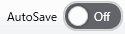
Toggle the switch to enable or disable the [AutoSave] feature. When enabled, changes to the project and compound objects are automatically saved in the background, 1 minute after any modifications.
|